

Joe Maring / Android Authority
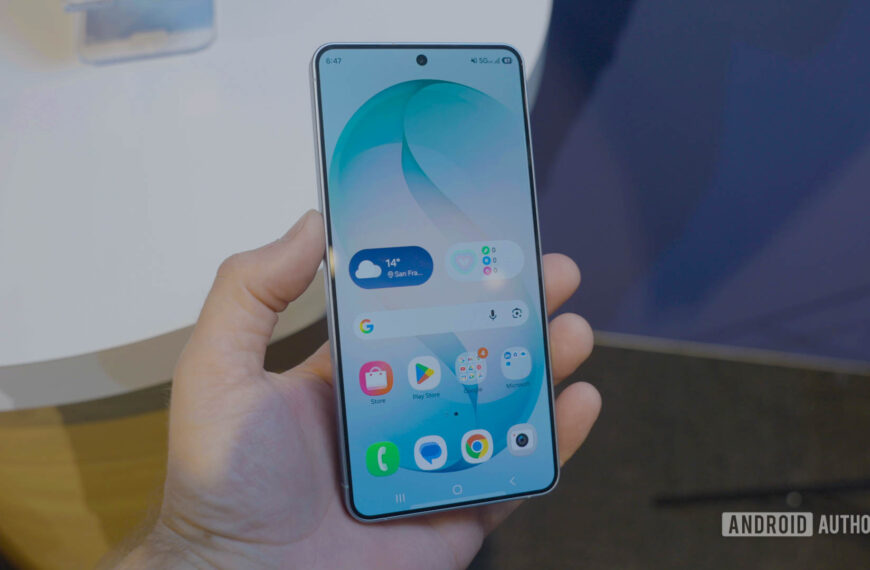
Why? Because there are a lot of big new features in QPR3 – some of the most notable being Google Search bar customization, new options for At a Glance, and a revamped flashlight UI. QPR updates usually include tons of new goodies to play with, and Android 16 QPR3 is no different.
However, there are a handful of smaller new settings in this Android update that you may not know exist. They aren’t game-changing additions, but they’re absolutely worth checking out as you settle into Android 16 QPR3.
How would you grade Google’s Android 16 QPR3 update?
674 votes
Separate 2.4GHz and 5GHz hotspot modes
If you peek at your phone’s hotspot settings in Android 16 QPR3, you’ll notice that the “Speed & compatibility” page looks a little different. Previously, you had two options: 2.4GHz and 5GHz, bundled as a dual-band frequency, and 6GHz.
In the QPR3 update, the 2.4GHz and 5GHz frequencies are now split into separate options, letting you select them individually. Some devices (such as smart home gadgets) refuse to work with dual-band or 5GHz networks, so being able to only use a 2.4GHz network with your phone’s hotspot can come in handy in those situations.
To adjust your hotspot frequency, open the Settings app, tap Network & internet, tap Hotspot & tethering, tap Wi-Fi hotspot, and tap Speed & compatibility.
New settings for Adaptive Connectivity
Another network setting that’s been expanded on in Android 16 QPR3 is Adaptive Connectivity. This used to be a single toggle to turn on/off, and when enabled, Adaptive Connectivity would “extend battery life and improve device performance by automatically managing your network connections.” Now, in QPR3, Adaptive Connectivity is broken up into two functions:
- Auto-switch to mobile network: Ensures connectivity when Wi-Fi is poor or unavailable.
- Optimize network for battery life: Automatically selects the best network connection to extend your battery life.
Each one is enabled by default, but you can turn them both off or use one but disable the other — the choice is yours.
To find these new options, open the Settings app, tap Network & internet, and tap Adaptive connectivity.
New alert and info when apps use your location
The third hidden setting in Android 16 QPR3 — and the one I think is the most useful – is the new location permission pill.
Whenever an app uses your location, you’ll now see a small blue dot in the top-right corner of your screen. It expands to a blue pill with a location icon when you open the notification panel/Quick Settings, and tapping on the pill reveals which specific app is accessing your location. The best part? If you tap the arrow on this screen, you get quick shortcuts to close the app or manage its location permissions.
Don’t want to miss the best from Android Authority?


Thank you for being part of our community. Read our Comment Policy before posting.
 By
By