
Google is relatively late to the party when it comes to AI notification summaries, as brands like Apple and Motorola have already rolled out similar features. User responses have been mixed, though, with people reporting inaccurate and unhelpful results. Now, Google is finally rolling out AI notification summaries for Pixel users, and it has a chance to prove that slow and steady wins the race.
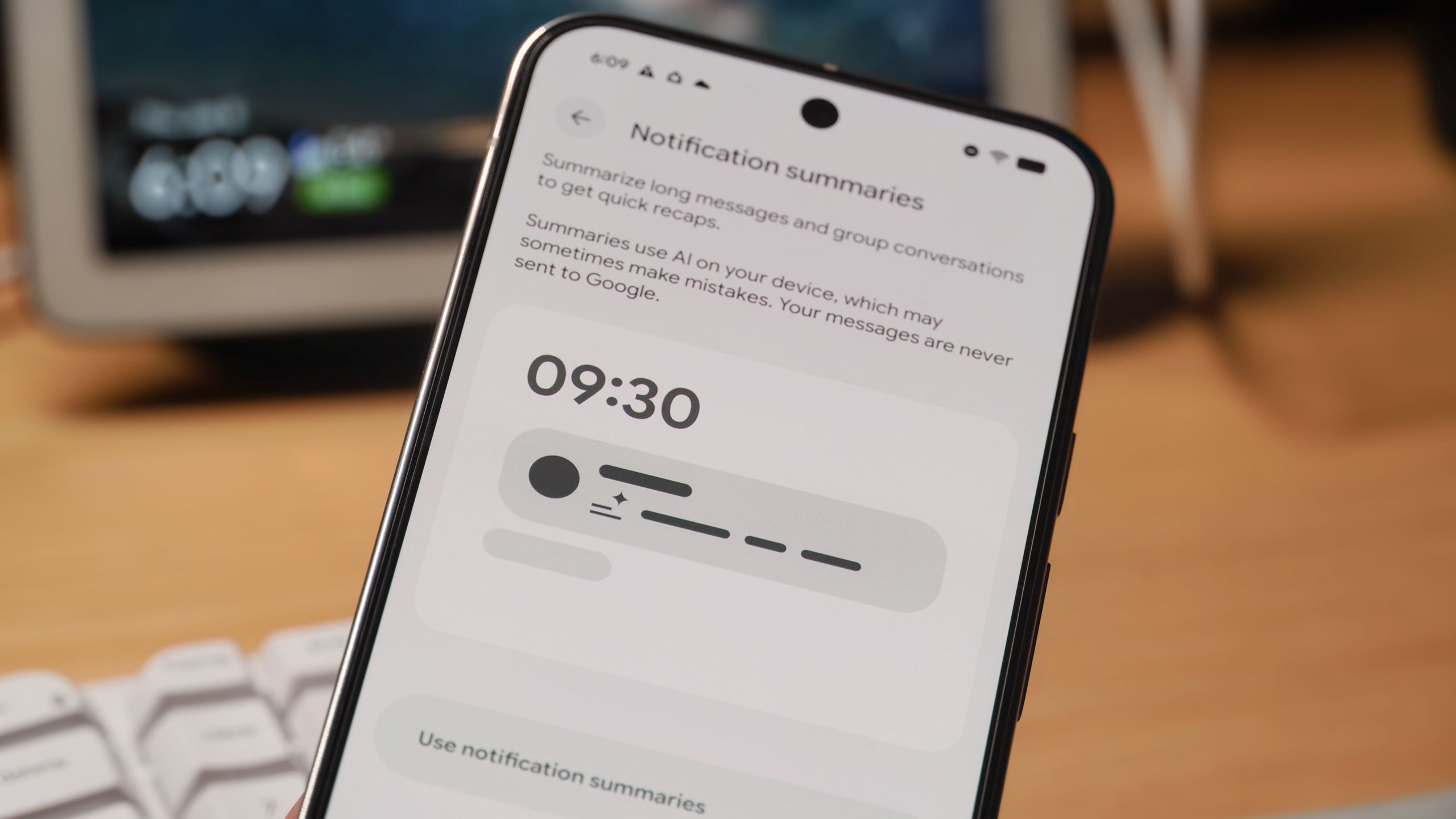
The feature works for notifications from popular messaging apps, condensing long chats into more digestible bites. It’s all processed on-device, but the feature is disabled by default, so you’ll need to manually enable Android’s AI notification summaries if you want to see them. Here’s how to do it and customize the feature to match your preferences.
Who can use AI notification summaries (and how they work)

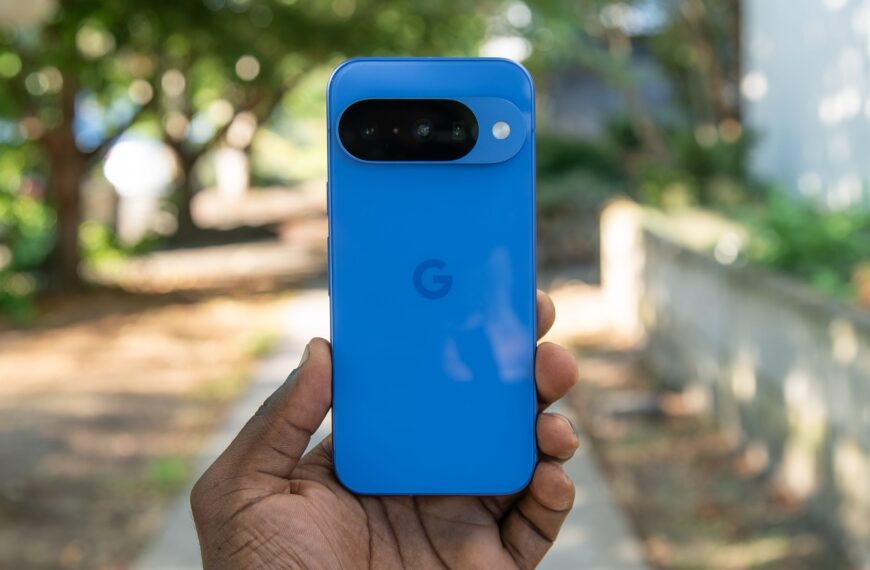
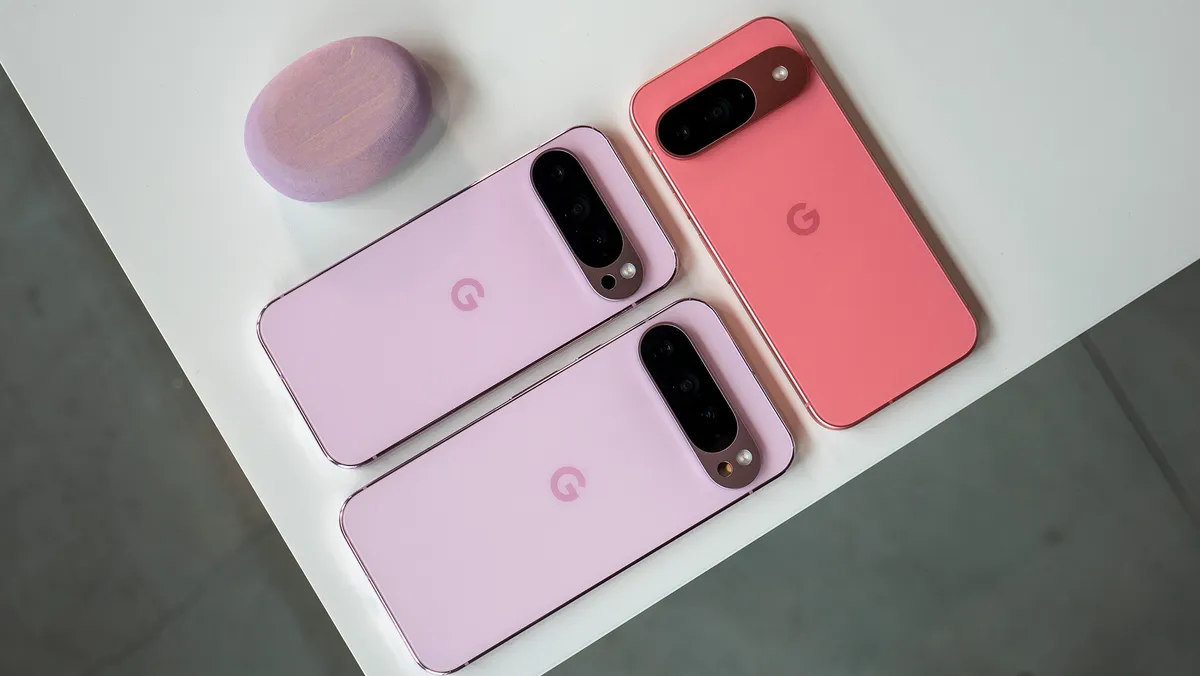
Google added AI notification summaries to Android 16 with a Pixel Drop in December 2025. Notably, the feature is only available for Google Pixel 9 and Pixel 10 series phones, excluding the Pixel 9a.
Since the summarization happens on-device, the Pixel 9a’s smaller 8GB of RAM is presumably not enough to power this tool. This also guarantees the contents of your notifications are never sent to Google. Additionally, summaries are only available in English.
Notification summaries are designed to work with long messages or group chats from messaging apps like Google Messages, Android Messages, WhatsApp, and others. It’s not intended for short texts, so AI summaries will not generate in some cases. AI summaries will only generate if your screen is turned off briefly, and will not appear when you’re using your phone.
When a notification is summarized using AI, a sparkle icon will appear beside the generated text. You can tap the summary to reveal the full message.
It’s worth noting that a separate AI feature for notifications, Notification Organizer, debuted alongside AI summaries. We have a full guide to using Notification Organizer here if you want to use both AI features together.
How to set up and use Android AI notification summaries
Android 16’s AI notification summaries are turned off by default. Enabling the AI-powered recaps is as simple as flipping a toggle in your Android notification settings. However, there’s room for customization, as you can pick and choose which app notifications are summarized with AI.
Here’s how to set up and customize Android AI notification summaries:
1. Open the Settings app on a Google Pixel phone.
2. Tap the Notifications page and press Notification summaries.
3. Flip the toggle beside Use notification summaries on.
4. Optionally, use the Manage apps page to customize which app notifications are summarized with AI.

Now, your notifications will be summarized as they arrive, especially for long messages and group chats. They’ll appear in Android 16’s notification shade as usual, with a small icon beside the summaries indicating they are generated with AI.
When to use Android’s AI notification summaries
Android 16’s AI notification summaries are turned off by default and are incredibly customizable, so you’re in full control when and if you use them. If you get a ton of long messages or have lively group chats that are hard to keep track of, notification summaries might be worth enabling. The short, simple AI summaries can let you know whether something needs your attention.
However, since the summaries are generated with AI, they can be inaccurate. It might be worth disabling these summaries for certain apps where accuracy is crucial. If you ever find them unhelpful, these summaries can be turned back off altogether.

The best for AI
The Google Pixel 10 series uses the Tensor G5 chipset for superior on-device AI processing, powering features like Android 16’s notification summaries.
 By
By