

Edgar Cervantes / Android Authority
TL;DR
- Google’s free VPN for Pixel phones is getting a useful upgrade.
- Its quick settings tiles now show the VPN’s status.
- The update has reportedly begun rolling out as part of a server-side flip.
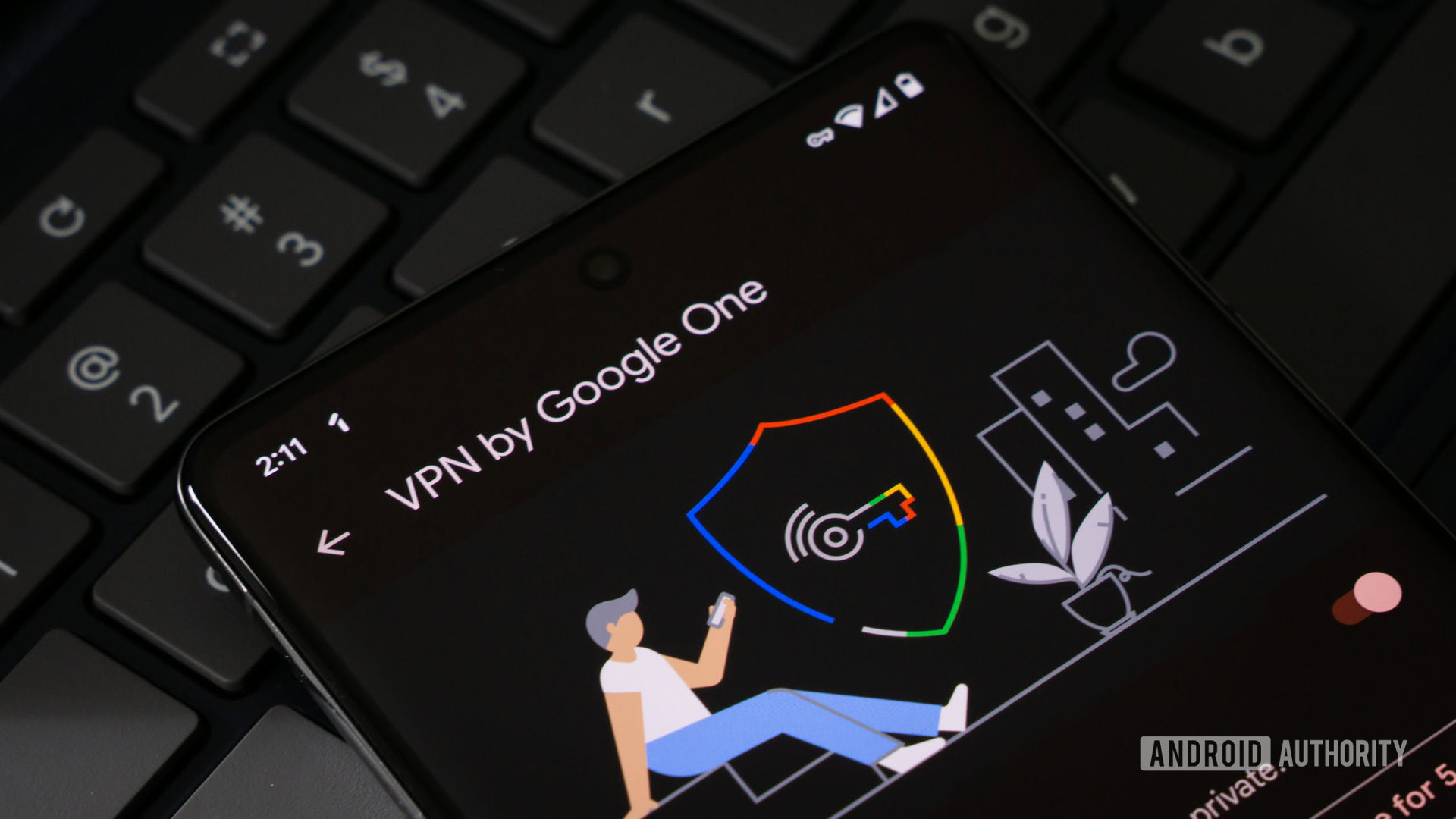
If you use the built-in free VPN by Google on Pixel devices, which replaced the previous VPN by Google One, there’s some good news. Google is making a minor change to the app’s quick settings tile to save you time and show the current status.
With the latest version of the Google VPN service, the bigger of the two quick settings tiles is being updated to display more information. Previously, the 2×1 (two columns, one row) quick settings tile used to display the same text twice, i.e., “VPN by Google.” The tile previously filled with color when the VPN was active and reverted to a lighter hue when disconnected, but did not show the status.
Don’t want to miss the best from Android Authority?


However, with this change, the updated tile now displays one of the four VPN states. These are:
- Connected: shows by a filled-up quick settings tile that is rectangular (with curved corners) in shape.
- Paused: the icon returns to a lighter shade and back to a pill shape
- Connecting…
- Can’t connect
Previously, users had to long-press the tile to view its exact status, so the update also saves those extra steps to access its exact state.
9to5Google notes that while these changes come as part of the latest version, they might be rolling out after Google flipped the switch at the server side.
If you’re new to VPN by Google, you can set it up on your Pixel device (Pixel 7 and newer) by going to Settings > Network & internet > VPN > VPN by Google. Once you accept the terms and use the VPN, a tile will also appear in the quick settings pane. Tap the pencil icon, then the VPN tile, and use the grab handle to expand it to 2×1. Unfortunately, the status cannot be viewed on a 1×1 tile due to space constraints.
Thank you for being part of our community. Read our Comment Policy before posting.
 By
By