
I’ve been a VR gamer for over a decade now, using everything from early headsets like the HTC Vive and Oculus Rift CV1 to modern headsets like the Meta Quest 3S. While these headsets offer different levels of functionality, comfort, and even controller and OS designs, most of them follow similar navigation concepts, just as Android and iOS share similar gestures and basic functions.
But when I opened up my Samsung Galaxy XR and started playing around with Android XR, I was a little confused. It admittedly took me some time before I was able to get the hang of some of the basic gestures and controls, but once I figured it out, it was smooth sailing from then on.
How to center yourself

On a Meta Quest headset or in SteamVR, holding the home button always recenters your play space, making it easy to realign the windows you have open or just reorient yourself in your environment. In Android XR, holding the home button via the finger pinch gesture does…nothing.
Given that this gesture has been a staple of VR headsets for a solid decade, I was immediately confused. I searched through the headset’s menus but didn’t find any obvious way to do what I wanted. Surely, the brilliant folks at Google designing Android XR didn’t forget such a simple, yet vitally important gesture, right?
Of course they didn’t! After figuring out how to do it, I actually prefer Samsung and Google’s method of recentering the view over all the other headsets I’ve used, and it all happens with a simple tap of the touchpad on the right side of the headset.
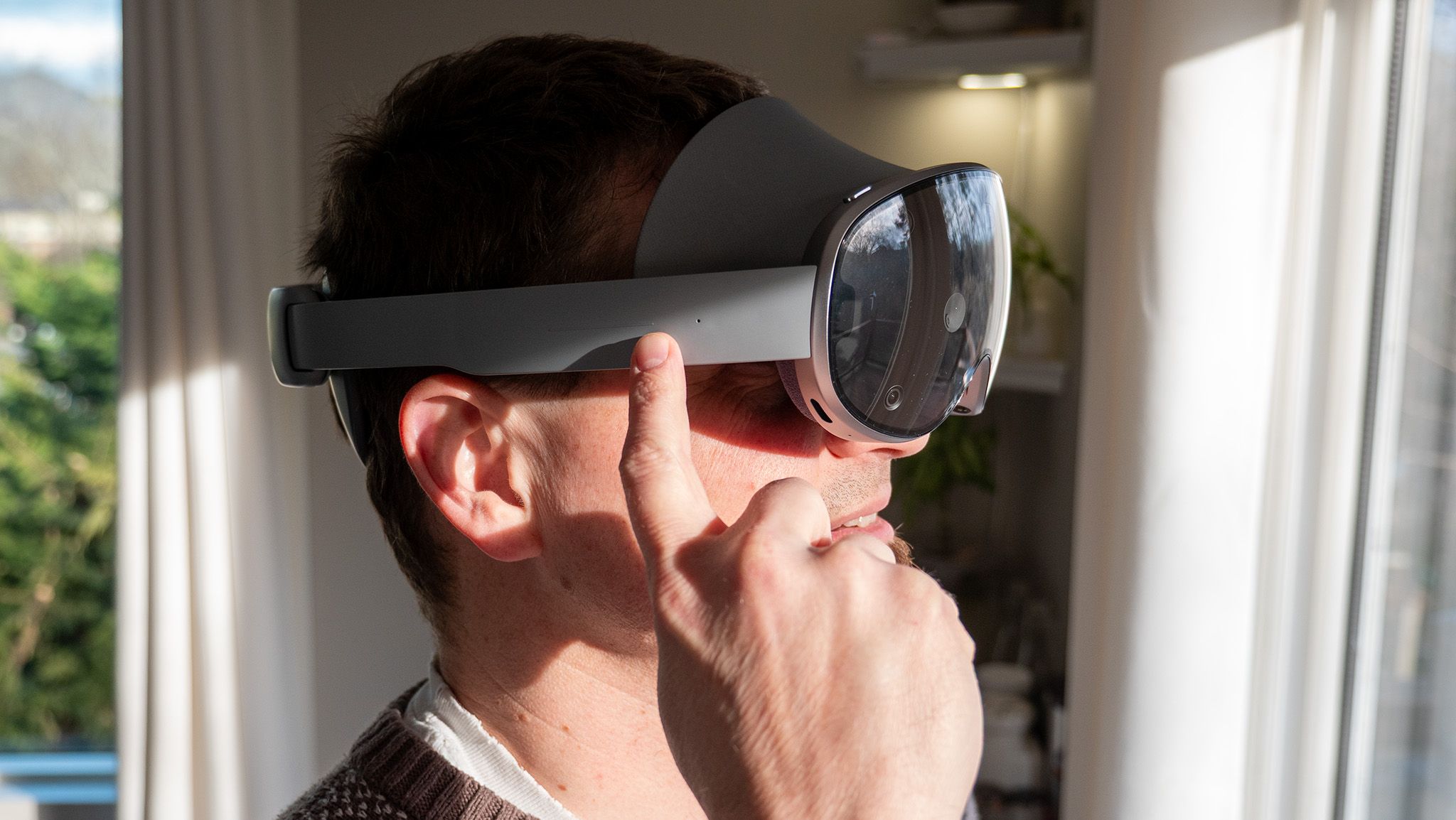
On the right temple, you’ll see a horizontally-centered line that shows you where the touchpad is. A long-press of that touchpad will instantly center your view and all your windows. A double-tap will switch between mixed reality and virtual reality, giving you a quick way to see the room around you in case you’re immersed in a game or a movie.
Screenshot and screen recording

Recentering things wasn’t the only thing I couldn’t figure out for a while. Some other basic tasks, like taking a screenshot and recording a video, were also different from what I was used to. Once I figured them out, though, they made a ton of sense, especially as an Android user.
You can take a screenshot or record a video by opening up the quick settings panel, but that’s not the quickest way to get the job done. Instead, you’ll want to reach up to the top of the headset and press the volume down and top button at the same time.
A single click of these buttons simultaneously will instantly take a screenshot. This isn’t just great for quickly performing this task; it’s also the best way to ensure you capture the moment without any annoying menus getting in the way. For some bizarre reason, there’s no quick action to record a video; you’ll just have to tap the button in the quick settings panel to start or stop it. Here’s hoping Google adds that feature in a future Android XR update!
Gemini and 3D image capture

While you’re up there, two other functions will come in handy as you continue to enjoy using the Galaxy XR. Like rubbing a lamp and summoning a genie, a long-press of that top button will summon Gemini or Bixby to do your bidding. One of the main pillars of Android XR is that Gemini has immense control over anything you’re doing on the headset when you want it to, and that can be a powerful tool when you’re stuck or don’t know how to find something. Even if Gemini can’t get the job done for you, it’ll tell you exactly how to do it manually.
Likewise, you can actually use Galaxy XR as a fancy 3D camera by double-pressing that top button to launch the camera app. It’s not quite as elegant as using a pair of smart glasses to record video or take pictures, but it has a massive advantage: it’ll capture spatial photos and video instead of boring old 2D ones.
Those are best viewed with a headset like the Galaxy XR — or an upcoming pair of Android XR smart glasses like Project Aura — because the binocular lenses provide proper spatial playback, making your photos and videos come to life like never before. Even if you haven’t used the Galaxy XR to capture these memories, the Google Photos app can use the power of AI to automatically add a 3D quality to anything you have stored on the service, and that’s a pretty magical feeling.

With powerful, sleek hardware and a bespoke version of Android that’s designed for XR experiences, the Galaxy XR is an impressive headset with immense capability.
 By
By