
Google Photos offers a robust selection of image editing tools, and many of them are free and cross-platform. However, with the ever-accumulating assortment of editing features, it can be hard to keep track of them all. Recent updates to Google Photos completely overhauled the image editor, and longtime features like Magic Eraser or Magic Editor are in new places. If you’re overwhelmed by the options available in Google Photos, there’s a new feature you need to try.
It’s called Ask Photos, and it’s designed to help you command the tools found within Google Photos. Instead of seeking out the exact slider or button needed to carry out your edit, Ask Photos lets you write a natural-language prompt. Just like you can use conversational requests to control AI chatbots like Gemini, you can now ask Google Photos to edit your photos in a similar way. It works for classic editing features and generative editing tools powered by AI.
Everything you can do with Ask Photos

Ask Photos brings every Google Photos editing tool to the surface with simple prompts anyone can write. In the new Photos editor, there’s a Help me edit text field that can accept conversational requests. You can type commands like “fix the lighting” or “center the person in the image,” and Google Photos will use the appropriate tools to make the adjustments. That could be the cropping tool, color adjustment sliders, or Magic Eraser, depending on the situation.
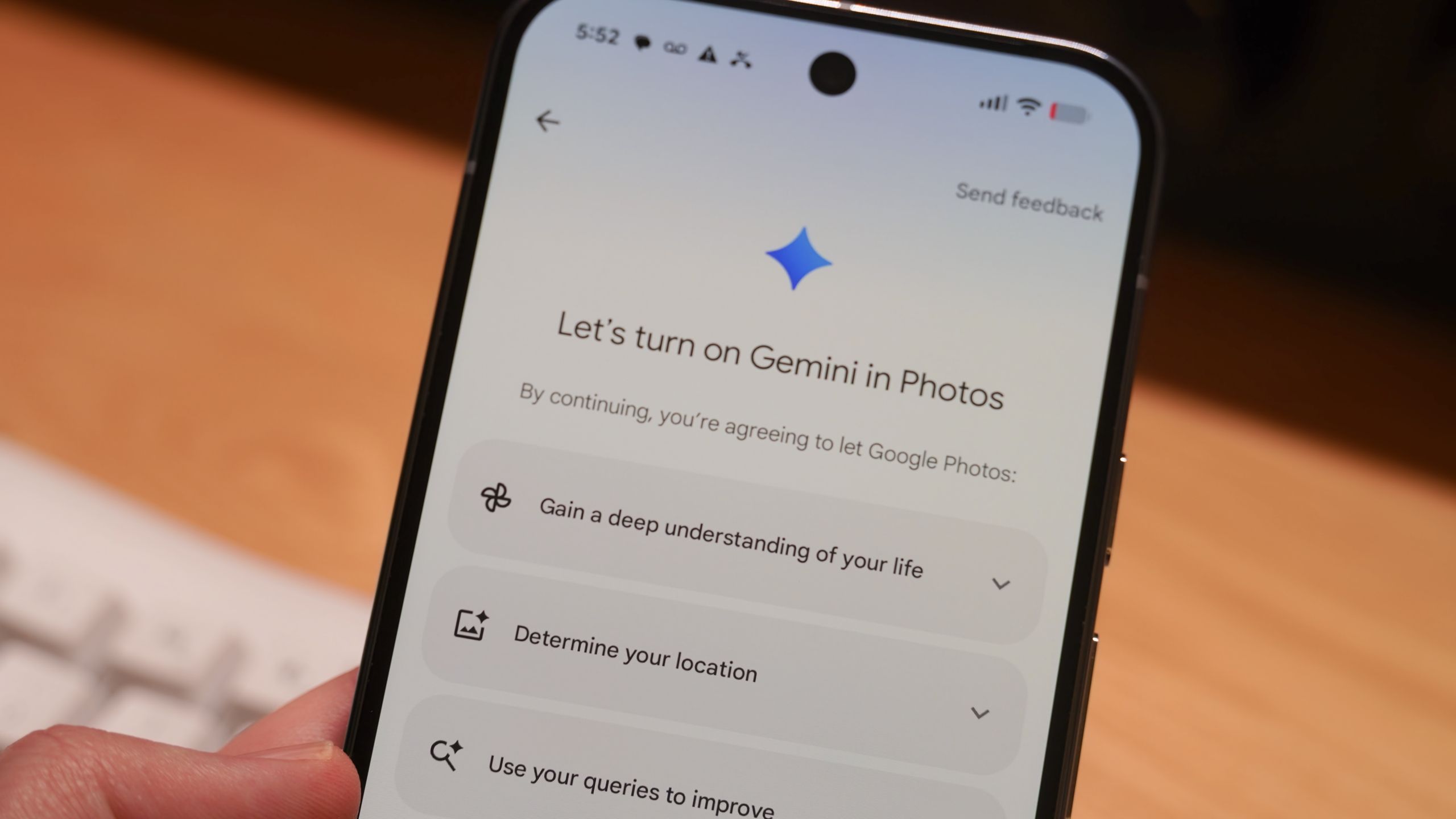
The Help me edit chat box should appear for personal Google accounts in the U.S., but you’ll need to opt-into the Ask Photos experience the first time you use it. The feature requires using face match and location estimation. When you turn on Ask Photos, the app will ask for your permission to let Photos “gain a deep understanding of your life, determine your location, and use your queries to improve.”

You’ll have to decide whether letting Google process your information is worth the convenience of Ask Photos. Google isn’t processing your photos or videos to train its AI models, but it will use the prompts for training, so don’t write an Ask Photos request with personal information.
How to use Ask Photos in Google Photos
You can find the Ask Photos chat box in the Google Photos editor. The first time you use Ask Photos to edit a photo, you’ll need to accept the terms and conditions, allowing Google to process certain data stored in your images. After tapping through the prompts and granting access, you can make changes to shots with Ask Photos by following these steps:
1. Open the Google Photos app and select a photo to edit.
2. Tap the Edit button on the photo you’ve selected.
3. Press the Help me edit text field.
4. Tap one of the Ask Photos suggestions or type your own prompt and press the Send button.
5. Wait for the photo to process. When finished, hit Save as copy to save the edited photo or keep using Ask Photos by typing another prompt.

Since Ask Photos can utilize the full arsenal of Google Photos editing tools, you can make changes to your photos without knowing how to use every individual option. Just describe what you want to do, and Ask Photos will do it for you.
Ask Photos records every change you make for transparency

Ask Photos uses C2PA Content Credentials for transparency, and this helps make clear which photos are original and which have been edited. The Google Pixel 10 series takes this one step further, recording C2PA Content Credentials within the Pixel Camera app at the time a photo is captured. The Google Photos app further adds metadata for images edited without AI and those edited with AI. Additionally, photos altered with Reimagine have SynthID digital watermarks.
In other words, you can safely edit your images with Ask Photos without misleading anyone. More importantly, certain modifications that don’t use AI — like cropping — won’t mistakenly add an AI label to your photos. Google knows the difference between AI and non-AI editing tools, and records it in the C2PA Content Credentials.
You can view the Content Credentials for any photo in your Google Photos library by going to the Details section. You’ll only see the credentials if a photo was captured on a supported device or edited with Google Photos.
When I use Ask Photos to edit my pictures

Any time I need to use a complex editing feature in Google Photos, I use Ask Photos instead. It usually saves me taps in the Photos editor, and by extension, it saves me time. Rather than use a handful of taps to crop an image or adjust the colors, I can type out a simple prompt in the Ask Photos text field. From there, Google Photos takes the reins, completing the edits automatically.
It’s a neat way to explore all the things Google Photos can do to remix your pictures. By using natural language prompts, you can experience photo editing tools you never would’ve encountered otherwise.
 By
By