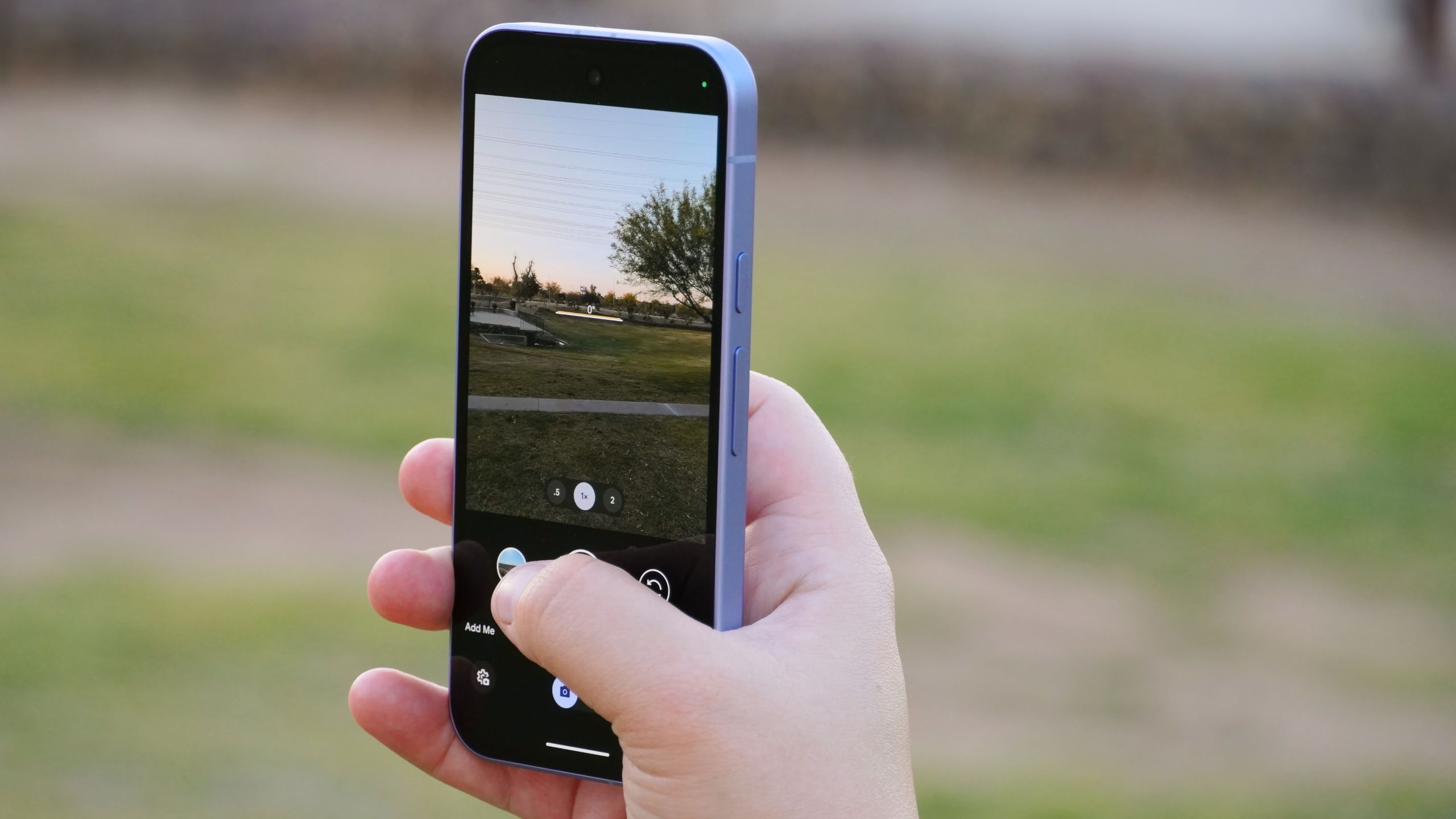

Google Pixel phones are loaded with AI-powered camera and photo editing tools, and there are even more available to all Google Photos users. There are flashy options like Magic Editor or Auto Best Take, but there are plenty more that aren’t front and center in the Google Photos app. One such feature is Auto Frame, an advanced cropping tool that launched with the Google Pixel 9 series and made its way to the Pixel 9a, too.
Smartphone cameras employ quite a few post-processing tricks to improve quality, but there’s still more to capturing a good photo than having the right hardware or algorithm. Real-world conditions, including lighting and framing, can have a big impact. Auto Frame automatically crops and resizes your images with more desirable framing, so photo composition is one less thing for you to worry about.
What is Auto Frame, and what does it do?

Photo composition is all about intentionally placing certain parts of the image in specific places to achieve a desired look. Typically, you want the subject of your photo in the center and in focus. Auto Frame on Google Pixel phones uses AI to identify the subject or focus of a photo and crop the image accordingly. Depending on the image, this could involve centering the subject or adjusting the aspect ratio of the photo.
In some cases, Auto Frame will simply zoom in on an image or trim the edges to find the right framing. In others, the tool can employ generative AI to expand the image, filling in the space around the actual photo. This creates the appearance of a wider shot, allowing Auto Frame to get more creative with the image’s framing.
Auto Frame suggests multiple AI-adjusted images, so you can pick the one you prefer. If you don’t want the expanded images created with generative AI, it’s perfectly fine to skip them. There’s even a refresh option that runs Auto Frame again to suggest more edits, helping you find the best one.
How to use Auto Frame on a Pixel 9 or later
Auto Frame is a somewhat hidden tool in the Google Photos app. It’s not a high-level editing tool like Magic Eraser or Photo Unblur. Instead, this is a little-known option that you won’t see until you open the cropping tool in Google Photos. Here’s how to find (and use) Auto Frame on your supported Pixel phone:
1. Launch the Google Photos app and pick a photo.
2. Press the Edit button in the toolbar and tap Tools.
3. In the Actions tab, pick the Crop tool.
4. Tap Auto frame.

5. Auto Frame will then generate a handful of options. Pick your favorite, or press the refresh button to load new options.
6. Press the checkmark when you’ve picked a selection.
7. Hit Save as copy to save the edited photo to your camera roll.

Since Auto Frame saves the edited photo as a copy, you’ll always have the original to fall back on. You can use Auto Frame to edit and crop your original image as many times as you’d like, turning one photo into a handful of photos, all with their own look and feel.
Auto Frame can inspire your next shot

Even if you’re opposed to using generative AI in photography, Auto Frame can still be a useful learning tool. Take the screenshots above, for example — Auto Frame took a basic wide shot of a harbor and turned it into completely different photos with unique sizes and subjects. In one photo, the dock and ships became the focus. In another, the once-landscape photo became a portrait one that contrasts the land, water, and sky.
In the last screenshot, Auto Frame used the rule of thirds to arrange the elements in the photo in a visually pleasing way. The land, water, and sky each roughly take up a third of the image, with the main dock nearly centered. It’s the perfect example of quality photo composition in action. You can pick up on these stylistic choices and apply them to future photos, helping you become a better mobile photographer overall.

To me, Auto Frame separates itself as one of the more useful Pixel photography tools because you don’t have to use it in the moment. It’s always available in the Google Photos app, and you can use it to edit photos that are years old. Rather than fiddling with photo and camera settings in a pinch, you can snap a quick photo and clean it up later using Auto Frame. That makes this tool incredibly appealing for any budding photographer who’s in a rush.
Best of all, it doesn’t go overboard with generative AI. The feature might fill the gaps here and there, but the main goal of Auto Frame is to crop and resize photos to make them look better. It’s a tool that even AI skeptics should be able to appreciate.
Auto Frame is available on the Pixel 9 and Pixel 10 series, including the A-series model, and you can start using it now.
 By
By