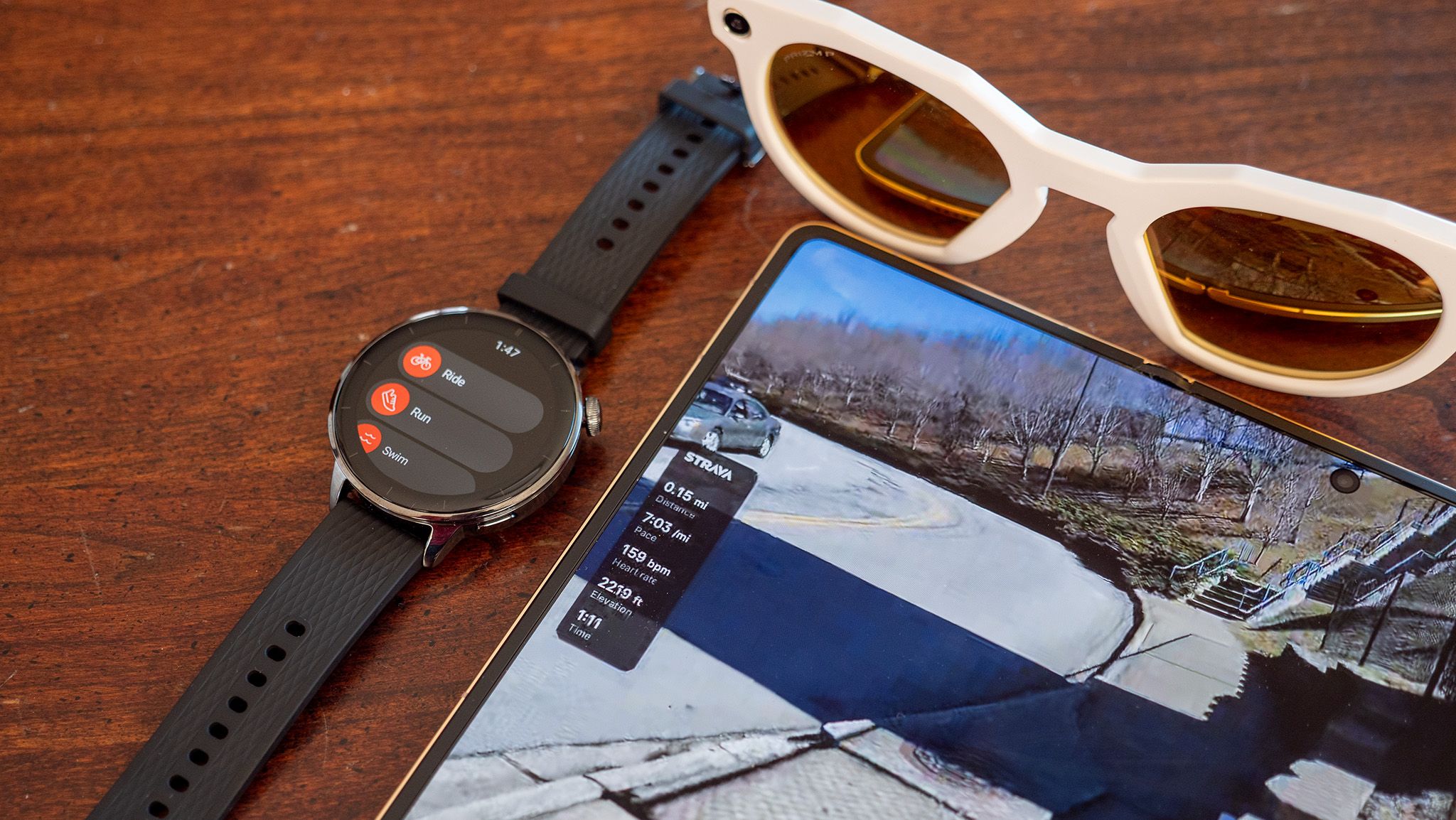

Last autumn, Meta announced an awesome partnership with Garmin, allowing Oakley Meta and Ray-Ban Meta users to link their glasses and smart watches together. This made it so that detailed Garmin fitness stats captured from your smartwatch would be automatically overlaid onto any videos recorded from your glasses during your workouts.
As a person who loves going to Spartan races, I was enamored with the idea of seeing my fitness data visually alongside the obstacles I went through in each race. The problem was that my Garmin watch was too old and didn’t support the Meta AI linking feature. Garmin watches are quite expensive, so I haven’t exactly been jumping at the gun to get a new one, but a new partnership between Meta and Strava turned out to be the answer I’d been looking for.
At first, I thought the Meta AI and Strava partnership would automatically tag any videos taken at the same time as a workout sent to Strava. I went to the gym for my typical workout of the day session and tracked the entire thing, plus recorded a few of the 400 meter runs I was tasked with, but I couldn’t figure out how to add the Strava stats to my videos.
Turns out, you need to initiate the workout tracking from the Strava app, which is just fine if you’re running a Wear OS watch like the OnePlus Watch 3 43mm I’m using. You can also use the Strava phone app, but you’ll be missing out on heart rate data.
Unfortunately, there’s no way to link Strava exercises to videos captured with Meta AI glasses if you didn’t record the workout using the Strava app. That means you can’t add stats to old videos, but at least you know this going forward.

To begin, you’ll want to open the Meta AI app, tap the devices tab at the bottom, then tap the settings wheel next to your glasses. In the list, select App Connections, then select Strava from the list. Log in with your Strava account and accept the required permissions needed to track your stats.

Now, when you’re ready to work out, start the activity from the Strava app on your phone or smartwatch. While Strava is tracking your workout, record videos or with your Meta AI glasses. Photos don’t seem to offer the option to overlay stats, only videos.
Once your workout is complete, open the Meta AI app on your phone, tap the devices tab at the bottom, and select gallery. Open one of the videos you took during your workout, then tap the stats button on the top left corner. Enable the stats slider, then select up to five available stats to overlay onto your video.

By default, the stats panel shows real-time data as you move through the video, but you can change it to a summary by selecting Stat Type in this section and changing it to summary. Each of these stat types offers different stats to show, making it fun to use both types for different videos. Using a smartwatch to record your Strava workout will net you the most stats since it can record heart rate and other data points.
Once you’re happy with your stats, tap the Save button on the top right to save a new video to your phone’s gallery. Now you can share the video with overlayed stats either using the Meta AI app or your favorite gallery app on your phone, like Google Photos.

Smart and stylish is the name of the game for the OnePlus Watch 3 43mm, a watch that’s just the right size, sports 3-day battery life, packs in the power of Google’s WearOS platform, and looks good doing it the whole time.
 By
By