

Rita El Khoury / Android Authority
The new Galaxy S26 packs a bunch of new features, some of which are genuinely interesting for everyday use, and others that made me raise my eyebrow, questioning what our life has become. But the one that struck me the most was the Galaxy S26’s new document scanning capability, which was built on AI, because of course, nothing works without AI these days!
Except… no. Every Android phone has a powerful document scanner built straight into the Google Drive app. You don’t need fancy AI or a Galaxy S26 to be able to scan documents, clean them up, and make a PDF out of them. Let me show you how Google Drive does it on any Android phone, from a Galaxy S24 Ultra to a Nothing Phone 2 or a Pixel.
Do you use Google Drive’s built-in document scanner?
7 votes
How to use Google Drive’s built-in scanner

Rita El Khoury / Android Authority
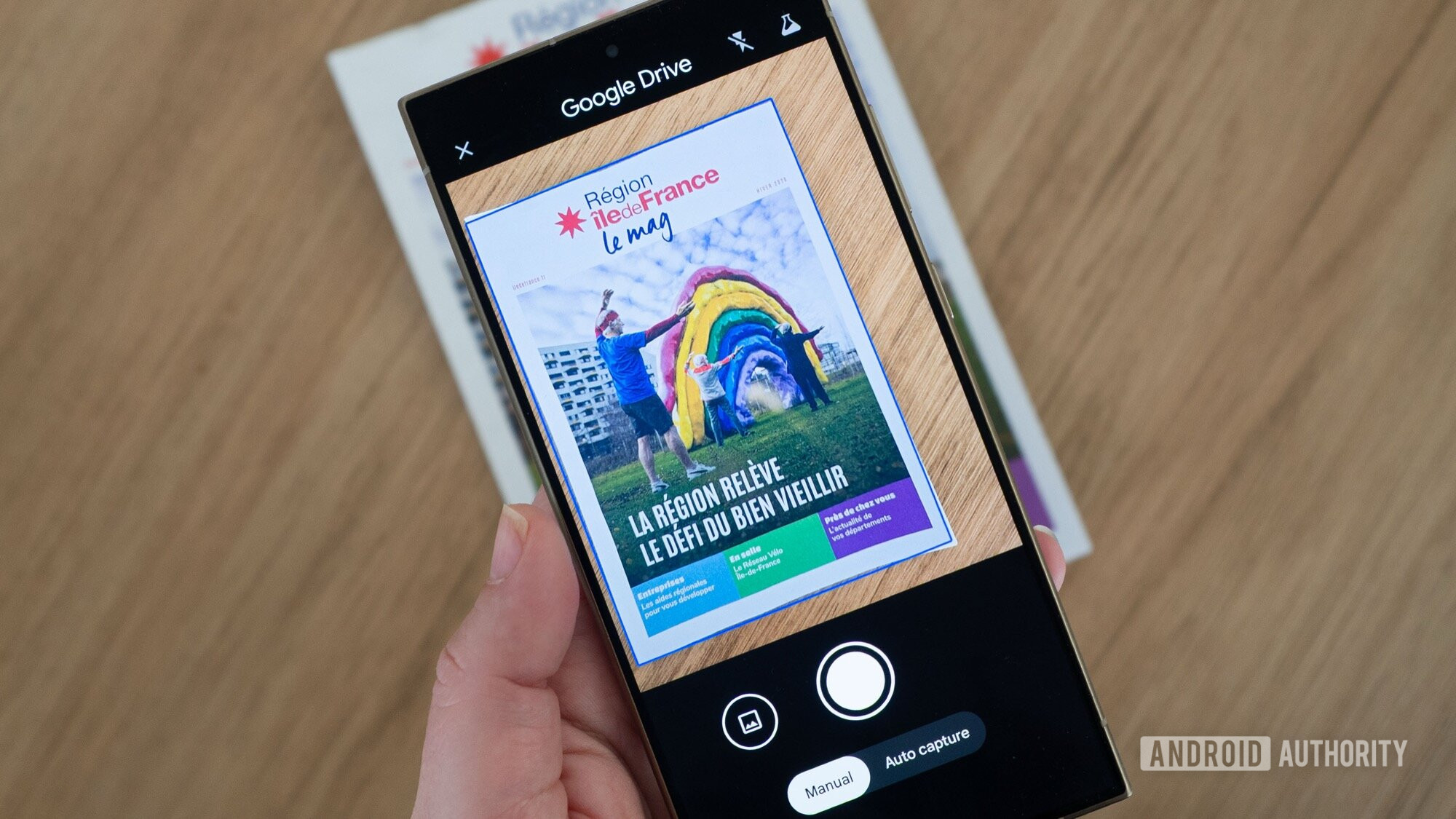
To use Google Drive’s built-in scanner, all you have to do is open Google Drive on any Android phone, tap the big Plus + button on the bottom right, then choose Scan. (You can also immediately tap the camera icon on top of the Plus.) This launches the scanner with two available modes, Manual and Auto capture. The first lets you align the pic and manually tap the camera button to capture the page or document you’re scanning, while the second will save the page by itself when it feels it has a proper scan.
In both cases, though, Drive is smart enough to auto-detect the document you’re scanning, be it a big page or a small receipt, with its proper borders. No matter how skewed or misaligned the perspective is, Drive will auto-crop the scanned pic to only include the document, without the couch, table, wall, or whatever is in the background. And it’s really good at it. I used to spend 20-30 seconds, easily, aligning documents in front of my phone before taking a photo with my phone’s camera. But I haven’t taken a manual photo of a document since I discovered Drive’s scanner.
I used to waste time aligning documents, cropping, adjusting perspective, and colors. Google Drive skips all of that.
Besides the perks of auto-aligning, auto-cropping, and even auto-capturing, Google Drive’s scanner does so much more. It auto-enhances the pic by first removing any shadows cast on the page. Then it fixes the white balance to obtain a proper white page and boosts the text’s contrast to make it more readable.
You still have manual control over all of these, so you can adjust the crop, rotate the pic, choose a different color filter (grayscale or black and white, for example), disable the shadow removal filter, and even clean any smudge you see on the page. While I appreciate all these manual controls, I’ve personally found that I rarely, if ever, need them. The default processing is so good that you’ll probably never have to tinker with the manual settings.
On top of this, Drive lets you add multiple pages to the document. You don’t need to start over. Just tap the icon with the page and plus sign inside it on the bottom right and scan away. You might also notice that Drive is beta-testing a new feature that can scan multiple pages in one go: You just move from one page to another to capture them all in a batch and then go to the edit screen. It works fine, but I find that sometimes it’s too quick to snap a document before I’ve aligned it well.
When you’re done with all your scans, tap Next, give your document a name, choose whether you’d like to export it as PDF or as JPEG (individual images in the case of multiple pages), and choose where you’d like to upload it in Google Drive.
Depending on what you need the document for, this may be the only super minor hiccup in the process. You have to upload the document to Drive first, and from there download it to your phone or send it to other apps. But if your entire purpose for scanning was to have a backup copy in Drive, then it’s a huge perk to have it immediately show up in the folder you want.
This is the only document scanner I use
Before discovering Google Drive’s built-in document scanner, I used to waste more than 10 minutes to go through the whole process. Align the document, focus it properly, snap the photo, rotate and crop, edit to increase contrast and improve readability, save it, then either convert to a PDF or merge several captures into one document. It was tedious and became even more so if I had to remove shadows or smudges. Sometimes I offloaded the entire chore to my husband, who would use an actual scanner, often taking more time to go through the entire process. We even considered using third-party apps to do this, but every decent one was paid or full of ads and pop-ups.
Google Drive completely changed the equation. Now a scan takes a few seconds, and I love how fast it is to breeze through several pages to transform them into one document. It’s such a huge time-saver, and the results are so immediately good, without me having to tinker to remove shadows or improve contrast. It’s as close to physical scanner-quality scans as you could get, with zero effort.
Google Drive’s scanner is simple to use, fast, free, and available to everyone now. You don’t need fancy AI to scan a document.
This has also made it impossibly easy for me to ask my parents to send me a document from back home. My mom had gotten better at lighting the document, capturing it as straight as possible, and avoiding awkward captures, but now she doesn’t need to do much of that. Snap, save to our shared folder, done. Parent-proof. Good tech should be as simple, free, and accessible as this.
Which brings me back to the Galaxy S26. You don’t need super fancy generative AI to scan a document, nor do you need an expensive phone made in 2026. You just need Google Drive on any Android phone. I’ve used the app’s built-in document scanner on everything from my three-year-old Nothing Phone 2 and Galaxy S24 Ultra to my new Pixel 10 Pro XL; it works just as well on all of them.
I’m sure there’s a certain level of basic AI happening in Drive to auto-capture, crop, and enhance the pic, but it’s not the buzz-worthy cool-demo generative AI that removes fingers from receipts. In reality, you don’t need any of that; it’s just as easy to put a receipt or document on any surface as it is to hold it in front of the cam with your finger sticking out. Just use Google Drive. Leave Galaxy AI for much more demanding tasks than a scan.
Don’t want to miss the best from Android Authority?


Thank you for being part of our community. Read our Comment Policy before posting.
 By
By