

Andy Walker / Android Authority
I recently wrote an article explaining why I prefer using a dedicated ad-blocking app on Android over the Private DNS feature. It seems many readers weren’t too happy with my conclusion. In fact, in a survey we ran alongside that piece, over 65% of respondents claimed that they use Private DNS to block ads on their phones.
I argued that a standalone app like Blokada gives me more immediate control over ad blocking on my device. However, one alternative that frequently appeared in the comments was NextDNS.
Do you use NextDNS?
14 votes
While I had heard of NextDNS before, I hadn’t given it a proper try. Considering that some of my favorite apps and services come from reader recommendations, I decided now was the perfect time. So, I set up a NextDNS account, and I’m so glad I did — I think I might have found my new favorite ad-blocking service.
What is NextDNS, and how does it differ from a dedicated ad-blocking app?

Andy Walker / Android Authority
Unlike Blokada, NextDNS is not an app. To understand exactly what it is, we need to consult the tech dictionary for a moment.
NextDNS, as its name suggests, is a managed DNS service that protects traffic to my devices. A DNS service, or domain name system, converts domain names into IP addresses, allowing browsers and apps to access resources. While most DNS services offer little to no customization, NextDNS encourages users to build their own product by stacking various blocklists and other measures. It’s essentially a firewall that you can tweak to allow only the traffic you want.
NextDNS encourages users to build their own DNS product by stacking blocklists and other measures.
Since NextDNS uses a DNS endpoint rather than a dedicated Android app, it can be used on practically any device that supports custom DNS endpoints. This can include anything from my PS4 to my TV.
It has other practical advantages that I’ll discuss later, but it’s safe to say that after reviewing the pros and cons, I was warming up to the idea of NextDNS. But is the service any good in practice?
Setup built for nerds and novices alike

Andy Walker / Android Authority
Well, it all started very positively for me.
NextDNS offers prospective users one of the most accommodating trials —it requires next to no commitment, and everything is available for evaluation right away. New users have seven days to test-drive the service, after which the test account expires. To keep your settings, you can sign up for a free account.
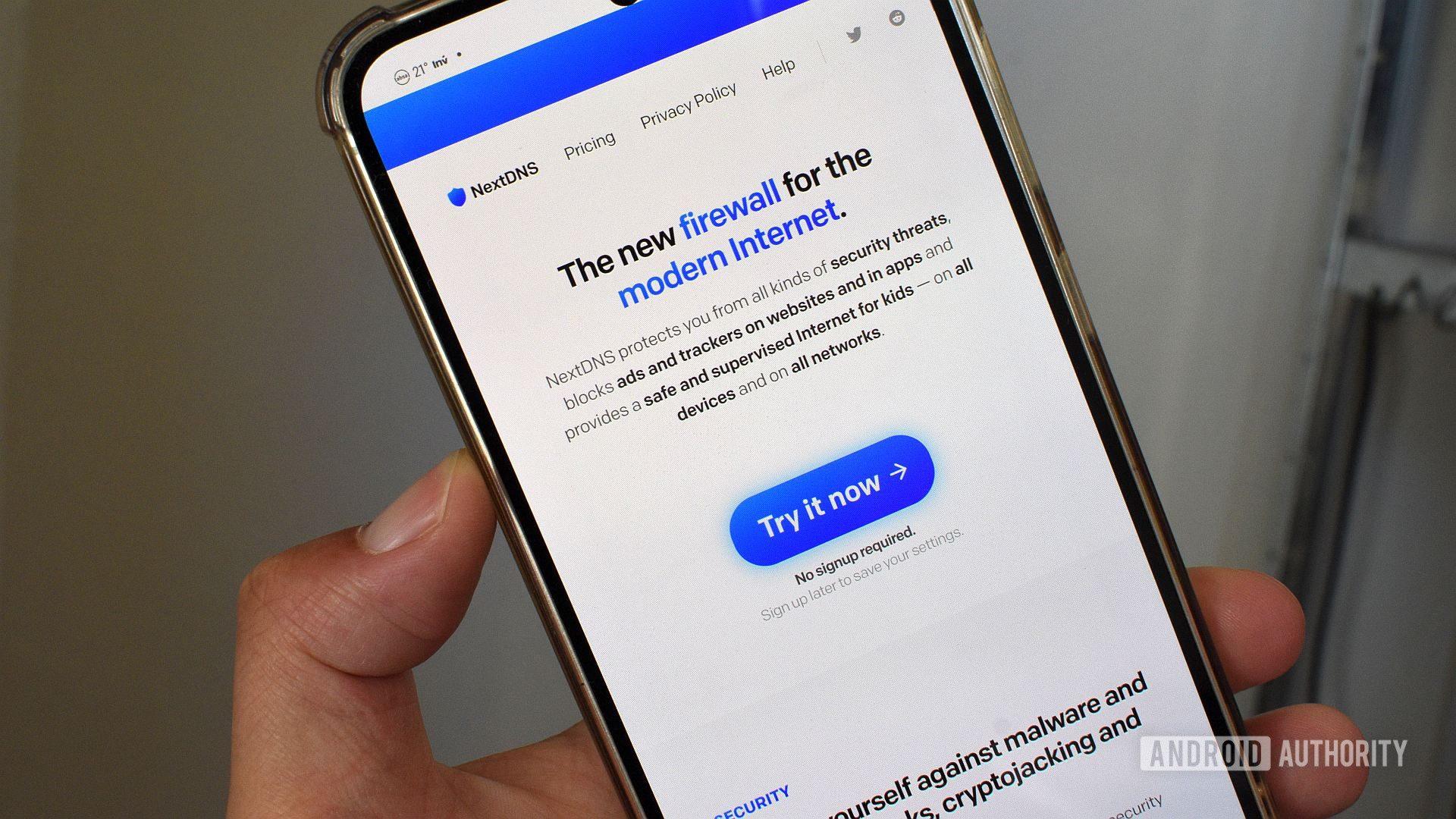
To test NextDNS, I visited the website and clicked Try it now. Note, I clicked rather than tapped — I found that NextDNS is best set up on a large screen with a keyboard and mouse. This is a personal preference, though. I’m sure you’ll do just fine using a mobile browser, but bear in mind, NextDNS’s app-less nature means you won’t be downloading anything from the Play Store to get it up and running. Everything is done on its web-based dashboard, at least initially. Once you’re up and running, I suggest downloading NextDNS Manager from F-Droid to access the dashboard from your phone.

Andy Walker / Android Authority
Back to the setup process, the NextDNS dashboard should be the next screen you see, with a row of tabs at the top, a list of endpoints and linked IP details below, and a dizzying number of setup guides for practically every device you can think of beneath that.
NextDNS uses Android’s Private DNS feature to filter traffic on my phone. It provides these details, so all you have to do is fill it in. Do this by opening Settings > Network & internet > Advanced > Private DNS. Select the Private DNS provider hostname option, then enter your personal DNS details and hit Save. Notably, your own DNS info will include your NextDNS ID — a unique alphanumeric string — followed by .dns.nextdns.io.
After setting everything up, I suggest opening your web browser and loading a test site, preferably one laden with ads. If you don’t see any annoyances, but the page still loads, NextDNS is doing its job!
Blocking everything, everywhere, all at once

Andy Walker / Android Authority
So that’s the initial setup process, but what about the rest of the experience? Well, there’s a lot to mention here, but it’s all worth knowing.
Like Blokada and other ad-blocking solutions on Android, NextDNS relies chiefly on blocklists. These are text files with multiple domain names known for serving ads. NextDNS then compares the domains on these lists and blocks any it detects. In simpler terms, NextDNS is the bouncer, and the blocklists contain the names of problematic patrons.
The service comes preloaded with its own blocklist comprising just over 87,000 entries at the time of writing. It looks a little thin, but based on my experience, it provides pretty good coverage. You may want to add your own region or content-specific lists, though.
If NextDNS is the stew, blocklists are the meat and potatoes.
To add blocklists, navigate to the Privacy tab on the NextDNS dashboard, scroll down to Blocklists, and tap the Add a blocklist button. From here, you can search available lists or sort them by popularity, size, or recency. Simply tap Add to attach that blocklist to your NextDNS dashboard.
Blocklists come in all shapes and sizes; some focus on country-specific domains, while others target analytics, trackers, and illegal content. You can determine which is best for you based on the level of control and coverage you want.

Andy Walker / Android Authority
What about protection beyond mere blocklists? Well, NextDNS offers some additional shields, too. I’ll detail some of my favorite settings and features below:
- Native Tracking Protection: Currently a beta feature, it blocks system trackers “often operating at the operating system level,” and can therefore dig a little deeper than blocklists usually can. I own a Samsung phone, so naturally, I selected the Samsung list, but options for Windows, Apple, Xiaomi, and other brands are also available.
- Block TLDs: This is surprisingly useful. If you want to blanket block websites with a specific top-level domain, you can do just that. In simpler terms, this allows you to block all sites that include “.edu” or “.cn,” for example.
- Allow Affiliate & Tracking Links: It’s important that I can access affiliate links, and running an ad blocker often gets in the way. Toggling this on allows this traffic through without me compromising on other ad traffic.
- Parental Control: This arguably deserves a section all on its own, because it’s one of NextDNS’s strongest suits. While I don’t have much use for it, those who deploy the service across their home network through their routers for their families certainly will. It allows you to control which websites, games, and even apps are accessible, including broader categories (think all dating apps, gaming sites, etc.), and even when these services can be accessed. If you want little Timmy to have access to the PlayStation Network only in the afternoon, and no earlier or later, you can do that with NextDNS. The service can also block bypass methods, like VPNs or Tor, so even the smartest kids won’t be able to get around your blocks.
Tracking the trackers

Andy Walker / Android Authority
Then there’s the most illuminating and rewarding part of the NextDNS experience: the analytics page.
Those who’ve used a Pi-Hole are familiar with how enjoyable it can be to look at blocked stats, and NextDNS arguably provides more thorough and useful insight.
By tapping over to the Analytics tab on the NextDNS dashboard, I can view how many domains are resolved versus those that are blocked; I can zero in on root domains and check the share of traffic that stems from “GAFAM” (Google, Amazon, Facebook, Apple, and Microsoft); I can see which countries these requests originate from; and even see which of the blocklists I’ve loaded blocked a particular query.
NextDNS offers plenty of insight into what it’s blocking, what it’s letting through, and where that traffic is coming from.
It’s all wonderful fun seeing your ad-blocking solution working, but these stats also inform any changes I make to my stack. If I’m getting an abnormal number of requests from Chinese domains, I can block the “.cn” TLD. If a domain gets through that I’d rather NextDNS block, I can add it to the deny list. Alternatively, I can add blocklists to plug any additional holes I notice. Analytics are endlessly useful.

Andy Walker / Android Authority
It’s also useful for keeping an eye on the total queries processed. NextDNS allows up to 300,000 queries per month for free accounts, after which you’ll have to pay for additional service. For pioneering internet users, this number will be gobbled up in no time. But I can see this being more than enough headroom if you’re using NextDNS on your kids’ or parents’ devices or router.
As a benchmark, I have NextDNS running on my main phone only, and I’ve just crossed the 10,000 query mark in the past two days. On this form, the free account will be more than adequate for me. However, if I were to add any other devices to my account, I would more than likely breach this barrier. I think that’s more than fair, and I appreciate NextDNS’s rather forgiving account structure.
Why NextDNS is a great solution for Android

Andy Walker / Android Authority
NextDNS was a pleasant surprise for me. I thought it would be tougher to set up and even harder to maintain, but this couldn’t be further from the case. I admit that I was reluctant to switch to a new workflow after using ad-blocking apps for so long, but I’m glad I took the plunge.
I have experience running a Pi-Hole on my network, and while I enjoyed watching domains get trapped in my web of blocklists, it required constant maintenance and the occasional but annoying tweak when some sites or apps refused to load. With NextDNS, I’ve yet to run into these same issues. It’s a set-it-and-forget-it affair, even if I do occasionally dip into the dashboard to check up on my analytics.
I’m a NextDNS novice, but even I could get to grips with it relatively quickly.
Then there are the clear benefits of using it over an Android app. Unlike Blokada, I can use a single NextDNS account across multiple devices, or blanket the entire network by tweaking the DNS settings on my router. This makes it further-reaching and more effective than a standalone app on my main phone. Since it uses the Private DNS slot rather than Android’s VPN service, I can use NextDNS alongside a VPN of my choice — something I couldn’t do while running Blokada.
I’m still a NextDNS novice, so I haven’t even started considering more advanced implementations like others have on their networks, including running it alongside Tailscale to broaden access beyond the home, and the detailed spin-off dashboards and services people have created to support their content-blocking habits.
…and why it might not be

Andy Walker / Android Authority
When you put it all together, NextDNS is one tasty proposition. While I’m now considering it my go-to for all ad- and tracking-blocking needs on my network, I still feel that a standalone ad-blocking app has its advantages in some instances.
For one, Blokada has no query limit. I can access practically anything on my phone while it’s running without worrying about exceeding the 300,000-query limit. And while I appreciate NextDNS’s wide scope of features and functionality, I only really need blocking on my main device — NextDNS is arguably overkill for a solitary phone.
Then, of course, comes the familiarity aspect. I know how Blokada works; I’ve grown used to the app’s quirks and the combination of blocklists. I have a lengthy allow list and personal blocklists too — I’d have to port all this over to NextDNS, which is work I’d rather avoid. Blokada works, so why change now?
While I still see the value in standalone ad-blocking apps on Android, I think I’ll hang onto NextDNS for a little while longer.
Since I started testing NextDNS, I switched off Blokada and haven’t yet rebooted it. I think I’ll stick with this arrangement for now. I’ve only been using it for a handful of days, which is far too little time to explore all its pros and cons. But, after my relatively brief test, I’ve grown to really like it. I can’t quite believe it is free to use (at least up to a very generous point), or the scope of its customizations, its deft handling of newcomers and power users, and its useful tools for managing an entire local network.
Either way, I have to thank readers for this recommendation. You have suggested some great Android apps in the past, and this service I can certainly add to my list. If you haven’t yet, give NextDNS a try, especially if you’re using a standalone Android ad blocker like I was.
Don’t want to miss the best from Android Authority?


Thank you for being part of our community. Read our Comment Policy before posting.
 By
By