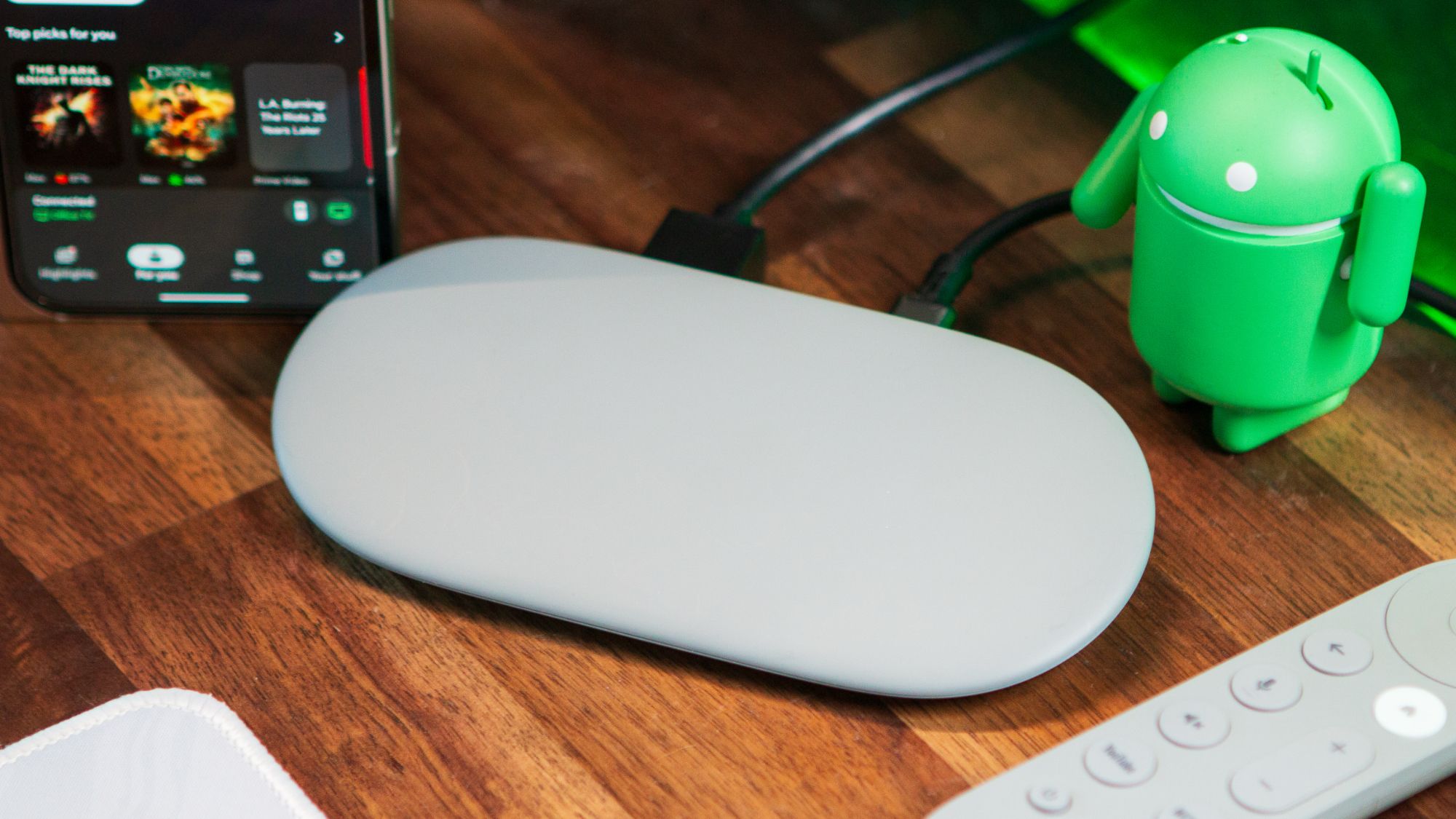

The Google TV Streamer 4K launched in 2024 and remains one of the best external boxes for running Google TV. If you’ve bought a smart TV recently, chances are that it already has Google TV built in, but the interface smoothness and features may vary based on the brand and model you’ve got. For instance, access to the Google Home panel via Google TV was initially exclusive to the TV Streamer 4K and later made its way to select third-party TVs, though not all.
If you’ve just got yourself a Google TV Streamer 4K or if you haven’t bothered exploring all of the features it has to offer, here are four key settings and features worth checking out to truly make it the best streaming device in your home.
Match the TV Streamer’s frame rate to the content being played

If streaming certain shows and movies appears a bit jerky to you, it’s not your eyes deceiving you, but this one setting in the Google TV Streamer that’s probably the culprit. On a 4K TV, your TV Streamer should default to the highest resolution, which is usually 4K 60Hz. When playing content, it will force everything to run at 60Hz, which can cause issues since a lot of shows and movies are designed to run at 24Hz.
Article continues below
Most streaming apps like Netflix and Prime Video will switch to the content’s original frame rate, but you need to allow the Google TV Streamer to match this.
To change this setting, follow these steps:
1. On your TV Streamer’s remote, long-press the Home button and select All Settings.
2. Select the first menu item: Display and sound.
3. Scroll down to Match content frame rate, and change it from Never to Always.
The Seamless-only option seems to be applicable to TVs that have Variable Refresh Rate (VRR). After enabling this, your TV screen might black out for a second when playing content lower than 60Hz and switch to a lower refresh rate, which is normal. You should notice shows and movies playing back normally after this, without any weird glitches.
Declutter your Google TV homescreen

If you find the default homescreen of Google TV overwhelming, with all the recommendations, carousels, and ads, there is a simple way to disable all of this. It’s called Apps-only mode, and enabling this removes most of the recommendations from the homescreen, leaving you with just your apps and nothing more.
Give it a try by going to All Settings, Account and profiles, select your account, and scroll down to the option called Apps-only mode. You’ll see a warning screen of all the features that will be disabled, including search and voice. Don’t worry, you can always come back here and disable it later if needed.
Once enabled, it’ll take a second or two for the homescreen to refresh, and you’ll see just your installed apps and limited tabs next to your profile image at the top. I personally like the default view and the recommendations, as I’ve discovered some great shows via this route. Plus, this also lets you take advantage of the next feature in the list.
Organize all your ‘watch-later’ content in a single place

The Watchlist feature in Google TV is similar to what made Plex such a huge hit with streaming enthusiasts ages ago. You can bookmark pretty much any piece of content from any streaming service in a universal Watchlist to watch later. This way, you have a single list of shows that you can go back to, rather than separate lists in each streaming app.
To add a piece of content to the Watchlist, simply long-press the center button on the remote and scroll to Add to Watchlist. This menu item should immediately change to Watchlisted. If you have multiple accounts set up on the Google TV Streamer 4K, you can choose which account’s watchlist you wish to add the content to.
To review all your watchlisted shows, simply select your profile image in the top-left corner of the homescreen, and scroll down to Watchlist to see a carousel of all your bookmarked pieces of content.
Use headphones with your Google TV Streamer 4K
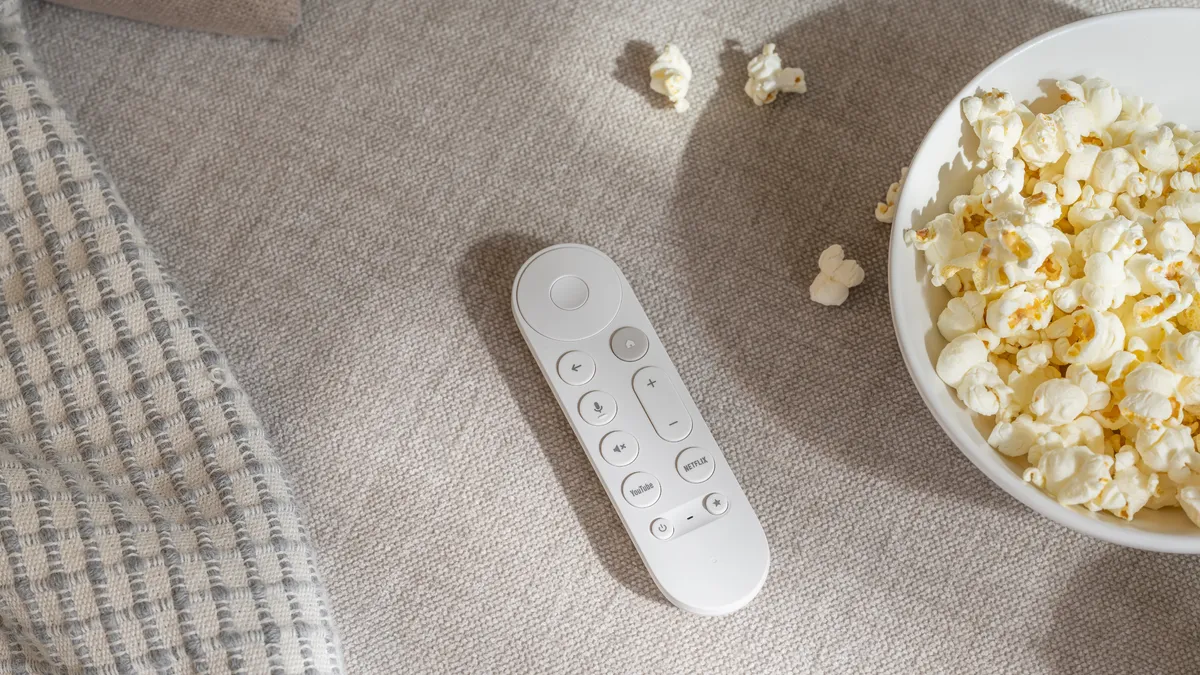
In case you didn’t know, you can pair any Bluetooth headphones with the Google TV Streamer 4K and enjoy your content without disturbing others. This is a very underrated feature and is extremely handy if you wish to continue watching late into the night without disturbing your partner in the room.
Head to All Settings, scroll down to Remotes and accessories, and choose Pair remote or accessory. Simply make sure your headphones/TWS are already in pairing mode and follow the on-screen instructions. The next time you power on your headphones, and if you haven’t used them with any other device, they should automatically pair with the TV Streamer 4K.
Do you have an undiscovered feature or trick you’d like to share? Let me know down in the comments.

Power-packed streamer
The Google TV Streamer 4K is the best streaming device to get if you’re heavily invested in the Google ecosystem. These simple but lesser known tips and tricks should help you get the best out of the device.
 By
By