

Joe Maring / Android Authority
One of my favorite web browser trends in recent years has been vertical tabs. Moving your tabs from the top of your browser to the side may not sound like a significant change on paper, but in practice, it makes your browser look so much cleaner and better organized.
While many browsers — such as Edge, Firefox, Arc, and Vivaldi — support vertical tabs, Google Chrome has long been missing from the vertical tab bandwagon. But at long last, that’s finally changing; vertical tabs have arrived in Chrome!
If you’re a Chrome user who has been patiently waiting for the browser to get vertical tabs, here’s how you can use them right now.
Do you prefer vertical or horizontal tabs for your web browser?
0 votes
How to enable vertical tabs in Google Chrome

Joe Maring / Android Authority
To get started with vertical tabs in Google Chrome, you’ll need to use either the Beta or Canary version of the browser. Vertical tabs will eventually come to the stable version of Chrome, but it’s currently unknown when that will happen. As such, you’ll need to download Chrome Beta or Chrome Canary if you don’t already have one.
Once you have Chrome Beta or Canary, vertical tabs won’t be available by default. Instead, you first need to manually enable them using a flag. Here’s how.
- Open Chrome Beta or Chrome Canary.
- Enter chrome://flags/ into the address bar.
- In the Search flags search bar, enter vertical tabs.
- Click the drop-down menu.
- Select Enabled.
- Select the Relaunch button at the bottom of the screen.
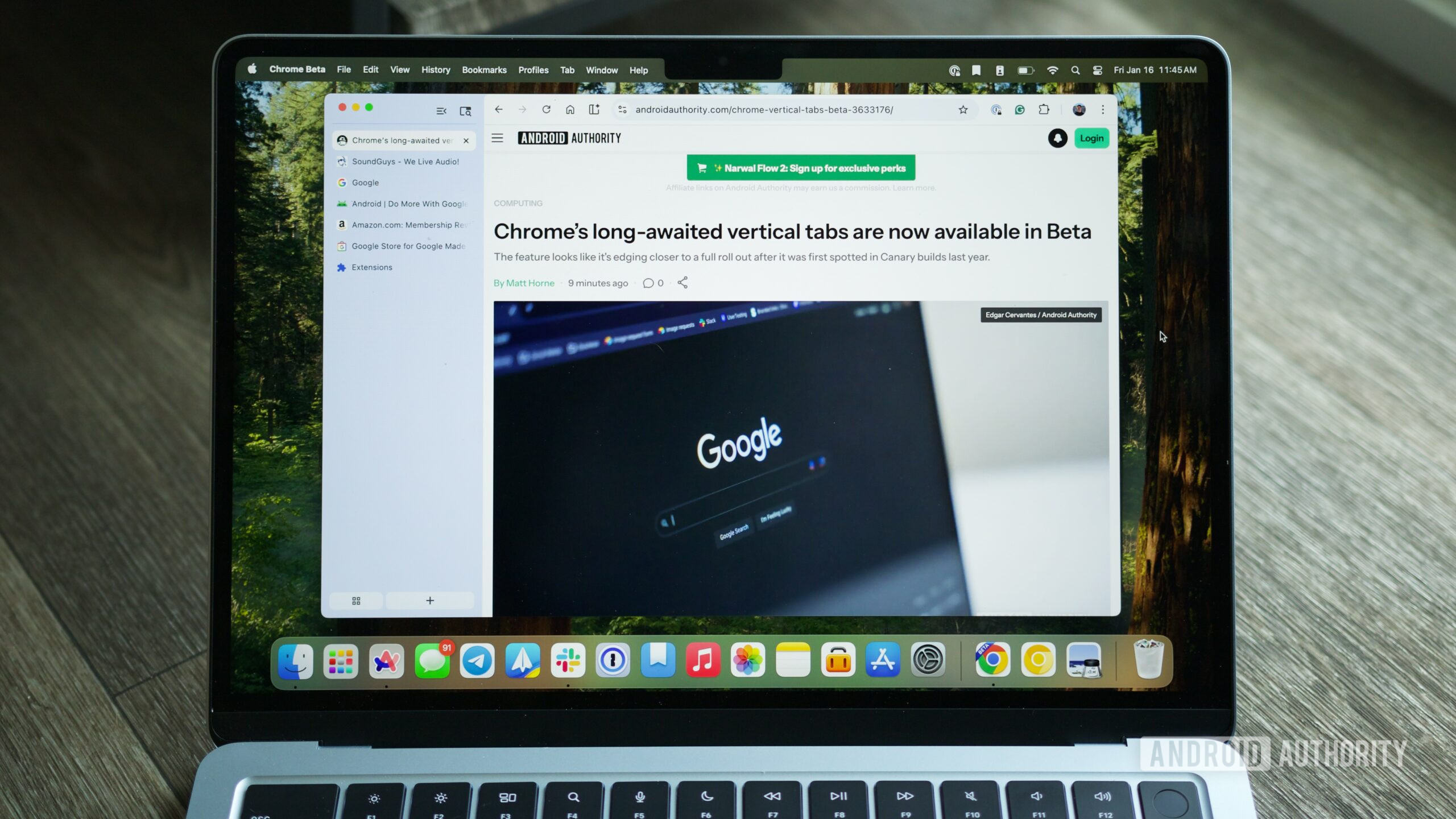
Now, open Google Chrome again, right-click the area above the address bar, and select Move tabs to the side. You now have a vertical tab menu in Chrome! If the traditional horizontal tab bar is still there, close Chrome, reopen it, and you should only have the vertical tabs now.
And that’s all there is to it! Once you switch to the side/vertical view, all your tabs are moved from the top of Chrome to the left. Additionally, the Tab Search button is moved to the top of this vertical tab list, while buttons for your tab groups and creating a new tab are at the bottom.
How to switch back to horizontal tabs

Joe Maring / Android Authority
Should you find that Chrome’s vertical tabs aren’t for you, the good news is that you can just as easily switch back to the traditional horizontal layout. Here’s how.
- Right-click the top area above your vertical tabs.
- Click Move tabs at the top.
Just like that, your tabs are moved back to the top of Chrome like nothing ever changed. At least on Mac, I’ve noticed that the pop-up menu that includes the option to move tabs back to the top doesn’t appear if you’re using Chrome in full-screen mode. If you minimize it to a window view, it should work just fine.
Should you use vertical tabs in Chrome?

Joe Maring / Android Authority
After playing with Chrome’s vertical tabs for a little while, I’d say that they’re absolutely worth giving a shot — at least to see if vertical tabs are right for you or not. As someone who’s all about vertical tabs, Google gets a few things right with its current implementation.
Having shortcuts for creating a new tab and managing tab groups on the same vertical tab menu is a nice touch; it helps keep everything well-organized and in one place. Tabs groups translate nicely to the vertical layout, and I like the option to shrink the vertical tab menu while still seeing icons for all of your open tabs.
That said, there are some things that need work. In that minimized view, clicking a tab closes it, and there doesn’t appear to be any way to change this action. As a result, you can’t switch tabs when the vertical tab menu is minimized like this, which is a bummer. I also wish the address bar were moved to the top of the vertical tab menu, similar to Arc Browser. In its current form, having the address bar at the top of the screen and the tabs on the side feels a bit disjointed.
On the plus side, since vertical tabs are still very much in an early testing stage, Google has time to tweak and update things before they are widely released.
That said, are you going to join #TeamVerticalTabs? Let us know.
Don’t want to miss the best from Android Authority?


Thank you for being part of our community. Read our Comment Policy before posting.

 By
By