

Rita El Khoury / Android Authority
When the March Pixel Drop started rolling out to the Pixel Tablet along with Android 16 QPR3, the one feature that caught my eye was the new Desktop Windowing experience. This promised to be a glimpse into the future of Aluminium OS and Android as a desktop PC environment, but there was one big hurdle along the way: the touchscreen.
As much as I like swiping and gesturing, a proper desktop experience requires mouse and keyboard support and needs to be flawless from day one. So, to get a feel for Android’s desktop future, I started looking at Bluetooth keyboards and mice for my Pixel Tablet. For less than $50, I found the answer, and now that I have, I can’t believe I waited this long.
Android’s external keyboard support is excellent today

Rita El Khoury / Android Authority
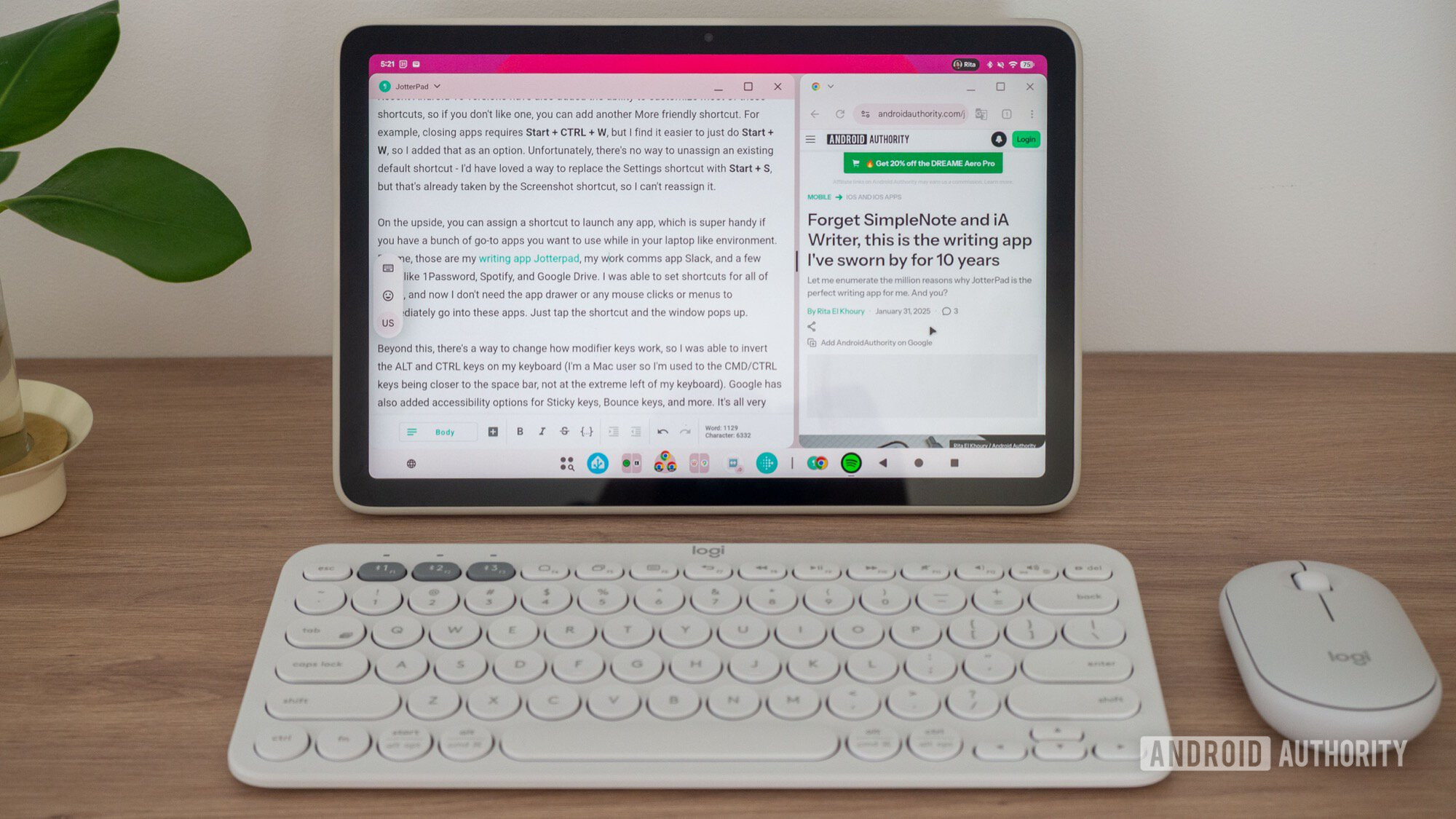
I had a glimpse of Android 16’s more powerful external keyboard support when I tested the Clicks Keyboard case last year, but having a full-on QWERTY on my desk is a whole other experience. I went for the Logitech Pebble Keys K380s ($34 on Amazon), a small and portable keyboard that can switch seamlessly between three devices and offers dedicated buttons compatible with Android’s navigation (Home, Recents, and Back). It turned out to be the perfect decision.
Everything I want to do on my Pixel Tablet, from switching between apps, going to the home screen, opening the app drawer, and navigating back through menus, is feasible without having to memorize a specific shortcut. I wouldn’t have lasted with a keyboard that didn’t offer these natively — having to repeatedly reach out my hand to the display to swipe or tap would’ve completely disrupted the flow and made the entire “PC” experiment silly and pointless.
More importantly, though, Android now supports a bunch of shortcuts with any traditional keyboard, even if they’re not built into dedicated keys. There are shortcuts to switch between open apps, take screenshots, insert emojis, switch keyboard languages, open Gboard’s built-in clipboard or translator features, drop down notifications or Quick Settings, and open any app. Even Android’s new window management features have assigned shortcuts, so you can easily send an open app to the desktop windowing view, move it to the right or left side of the screen, move it between displays or open desktops, and minimize or maximize.
You don’t expect a touch-first operating system to have such solid keyboard support, but Android now does. And for someone as addicted to shortcuts as I am, who’s always looking to optimize their unnecessary mouse time, this is absolute perfection. I’m still trying to learn the different ones, but knowing I can press Start + / at any point to invoke the shortcut overlay and refresh my memory is a good trick.
I didn’t expect a touch-first operating system to have such solid keyboard support, but Android now does.
Recent Android 16 versions have also added the ability to customize most of these shortcuts, so if you don’t like the default, you can add another friendlier one. For example, closing apps requires Start + CTRL + W, but I find it easier to just do Start + W, so I added that as an option. Unfortunately, there’s no way to unassign an existing default shortcut — I’d have loved a way to replace the Settings shortcut with Start + S, but that’s already taken by the Screenshot shortcut.
On the upside, you can assign a new shortcut to launch any app, which is super handy if you have a bunch of go-to apps you want to use while in your PC-like environment. For me, those are my writing app Jotterpad, my work comms app Slack, and a few tools like 1Password, Spotify, and Google Drive. I was able to set shortcuts for all of these, and now I don’t need the app drawer or any mouse clicks or menus to immediately go into these apps. Just tap the shortcut and the window pops up.
Beyond this, there’s a way to change how modifier keys work, so I was able to invert the ALT and CTRL keys on my keyboard. (I’m a Mac user, so I’m used to the CMD/CTRL keys being closer to the space bar, not at the extreme left of my keyboard). Google has also added accessibility options for Sticky keys, Bounce keys, and more. It’s all very well done and a huge step in the right direction in making Android a proper laptop- and keyboard-friendly operating system.
Android’s mouse support is good, but needs one big fix

Rita El Khoury / Android Authority
For my mouse, I opted for the basic Logitech Pebble Mouse 2 M350s ($20 on Amazon). It’s the slimmest and most portable cheap mouse I could find, and it does the essentials: right click, left click, scroll, and drag.
Android’s new Desktop Windowing is, honestly, delightful with a mouse. It’s so much nicer to move and resize windows with a smooth and precise mouse than it is with a grubby finger on a smudgy touchscreen. Minimizing, maximizing, selecting text, switching windows, closing apps; everything is just a tad frictionless and more fluid. Maybe that’s the ’80s kid in me talking, but I think mouse support augments Android’s productivity potential in a way that no gesture ever could. I wouldn’t take any PC or desktop OS seriously if I had to navigate it with stuttery, imprecise finger gestures. The cheer effort in reaching for the screen for every action would end the experiment in less than a minute.
Android has also implemented specific mouse settings to switch the primary button, optimize cursor speed and acceleration, and customize hot corners à la macOS. I immediately set the bottom left corner to go Home and the right one to open the Recents app switcher. That already solves half of my Android navigation conundrums with a mouse, but the Back gesture is a big hold-back. It’s not available among the hot corners options, there’s no way to trigger it with a basic mouse like this, and button mapping apps aren’t detecting the scroll wheel click or left+right click as a customizable shortcut from my mouse.
It’s so much nicer to move and resize windows with a smooth and precise mouse than it is with a grubby finger on a smudgy touchscreen.
Back is not a mundane gesture on Android; it’s been fundamental to the way the OS was built since 2008. Most apps don’t show it in their visual UI, but they rely on it to go back from sub-menus or leave pop-ups, not to mention how the entire OS is built around it for navigating back between apps. Say I click a link from Gmail that opens in Chrome, I need to be able to go back to Gmail without having to hunt for its icon. Back does that.
I’ve had to resort to switching to three-button navigation while I use my mouse just so I can have the Back button again on my screen as a clickable target. I’d much rather it were a mouse gesture or shortcut, though. And each time I disconnect my mouse, I have to manually switch to gesture navigation because that’s my favorite way of using my tablet with my fingers.
Putting aside the questionable Back gesture, though, Android’s mouse implementation feels more than capable now to handle a PC-like experience. Power users will want more features, of course, but most of the basics work very well.
Keyboard + mouse + Desktop Windowing = Pixel Laptop

Rita El Khoury / Android Authority
I have no qualms that the proper Android laptop product will be more powerful and more adapted than a three-year old Pixel Tablet, but the experiment of adding a $50 Bluetooth keyboard and mouse (you can find them as a combo on Amazon) to this tablet with Android 16 QPR3’s Desktop Windowing is as close as it gets. This combination is allowing me to have an early taste of Android’s desktop OS and follow along with Google’s plans.
If you want to give it a go too, I think it’s impossible to dissociate all three parts of this equation. You need the new free-floating window interface on a tablet, just like you need a Bluetooth keyboard and mouse to make the most of it. Going wired with a USB-C hub will be painful long-term. Plus, it’s excellent to see that I don’t need to unlock my Pixel Tablet first before turning on my keyboard or mouse. And if you have the Pixel Tablet’s official case with its excellent and stable ring/hook stand, you can just prop it up anywhere and get some work done. The entirety of this post, links and formatting and all, was typed in Jotterpad on my Pixel Tablet.

Rita El Khoury / Android Authority
For now, I’ve only used this setup at home on my office desk and dining table, but I’m curious about how it works on the go. I’m not usually the kind to pop open a laptop on a plane or train — I find that excessive for my own use cases — but this could change that. The fact that I don’t always have to have it all out in front of me and can just use the Pixel Tablet alone at times when I’m consuming content, then pull out the keyboard and mouse when needed, might push me over the edge to give it a go.
What I can certainly say, though, is that I’m more curious about Android’s desktop plans now. I still don’t think this is enough (I need the desktop Chrome version with extensions and search engines for it to be remotely usable for me), and I still question Google’s decision to start from scratch instead of using the decade-plus of Chrome OS under its belt. But if this is where things are going with Android on PCs, I’m willing to join along on the adventure.
Don’t want to miss the best from Android Authority?


Thank you for being part of our community. Read our Comment Policy before posting.
 By
By