

Ryan Haines / Android Authority
TL;DR
- Global Galaxy owners on One UI 6 or later can now try out the Collections app.
- This app was previously exclusive to users in China.
- The app stores information and allows you to easily search for it, sort it by app, and summarize it with AI.
Google offers a handy app called Pixel Screenshots, which makes it easy to organize and recall information from screenshots and photos. If you didn’t know, Samsung has a similar, but different app called Collections. However, this app was previously exclusive to the Chinese version of One UI. Now it looks like Galaxy users outside of China can try out Samsung’s take on the Pixel Screenshots app.
Don’t want to miss the best from Android Authority?
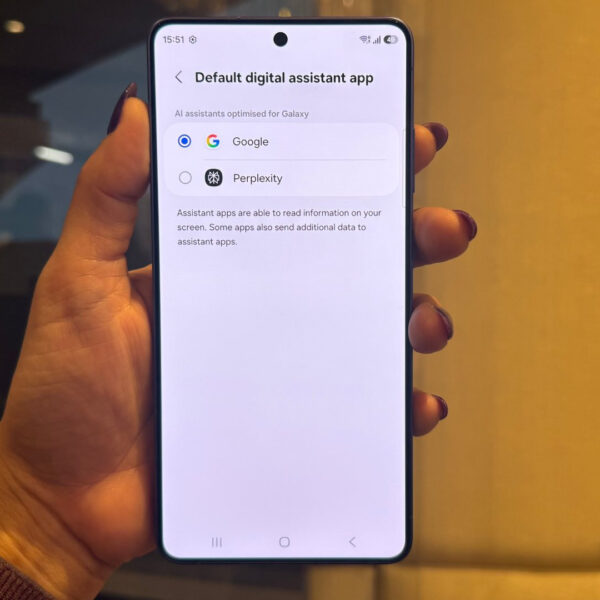
Spotted by Galaxy Techie on X (via SammyGuru), Galaxy owners can install an APK of the Collections app that works on global devices. Before you get started, know that your device will need to be running on One UI 6 or later. There’s also some poorly translated text, and you may run into some untranslated text as well. Last but not least, it appears that the Intelligent Drag and Drop feature and AI summaries are not functional yet.
What is Collections and how does it work?
Simply put, the app is a place where you can store information, such as images, clips of text, links, and so on. It’s designed to make searching for and sorting information a little easier with the help of AI. When you select an item, you can view it and have AI generate a summary of its contents. Items can be added to the app with the Intelligent Drag and Drop feature. However, since that feature doesn’t work yet, you can use the system’s share sheet as a workaround.
How to set up the Collections app
You’ll find Collections under Advanced features in the Settings app. When you tap on the option, you’ll be greeted by an intro screen with a brief explanation of what the app does. After you hit the “Get started” button, you’ll be asked to grant it permissions, including your app list and your audio, video, and image files.
By heading over to the three-dot menu and tapping Settings, you can create a shortcut on your home screen for quick access. Doing this will also add the app to your share sheet. However, keep in mind that the option will only appear in the share sheet if the information is a compatible file type.
Thank you for being part of our community. Read our Comment Policy before posting.
 By
By