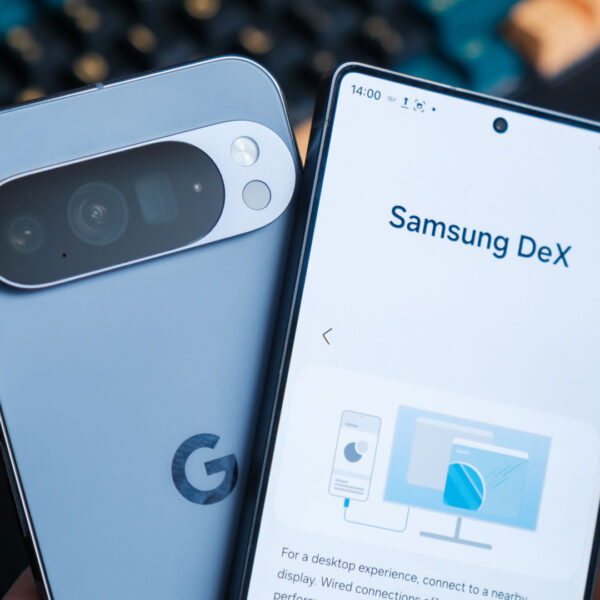

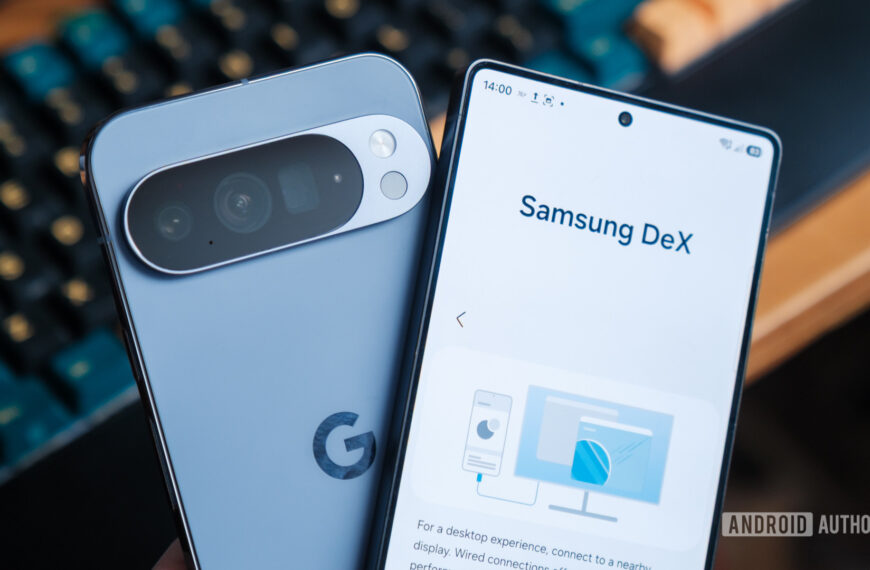
Samsung DeX has been available on Galaxy devices for many years now, and it is one of the main reasons I often prefer Samsung’s best phones over other Android smartphones. While Google has made it easier to access Android’s desktop mode with the latest Android 16 QPR3 update, Samsung DeX still feels a step ahead of the competition.
With the Galaxy Z Trifold, Samsung made it easier to access DeX mode directly on the device. With a single tap, users can switch from normal One UI 8 to Samsung DeX on the foldable itself.
Article continues below
Samsung DeX is even more powerful on the Galaxy S26 series

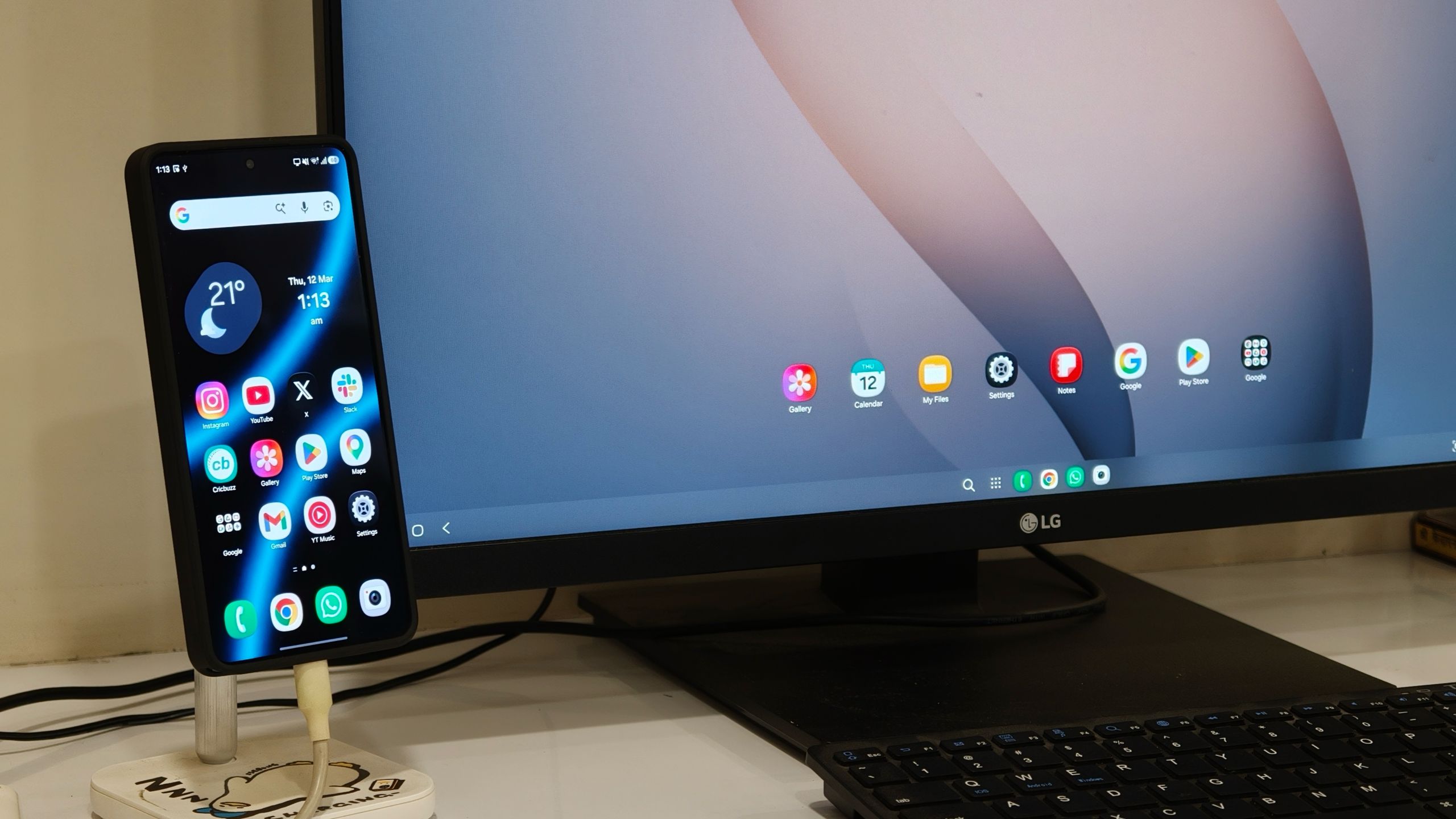
The core DeX experience on the Galaxy S26 Ultra remains largely the same. You connect your phone to an external monitor using a USB-C cable, and a desktop-style interface appears on the display. It looks similar to a traditional desktop environment, with a taskbar at the bottom, a notification and control area on the right, navigation controls on the left, and a large workspace where you can open multiple apps in individual windows.
What has improved on the Galaxy S26 series, especially with the Snapdragon 8 Elite Gen 5 powering the Galaxy S26 Ultra, is the ability to run far more apps simultaneously. The additional performance headroom allows the system to run many apps simultaneously without slowing down.
On my Mac, I often keep several desktops open, each with a different set of apps. For example, one desktop may run Firefox, while another runs Photoshop. Now Samsung has introduced something similar to DeX on the Galaxy S26 Ultra by adding support for multiple desktops.
You can now open up to four desktops simultaneously, with up to five apps running on each one. That means a total of 20 apps running side by side if needed. This was not previously possible, but the Galaxy S26 Ultra handles it smoothly. I tested this setup using a Galaxy S26 Ultra connected to my 27-inch 4K LG monitor, and the experience felt surprisingly close to using my Mac.

Apps open quickly, animations remain smooth, and for software that already supports larger screens, especially Chrome and other Google apps, the experience feels very close to using a traditional desktop operating system.
I can see how this could benefit many users over time. Imagine carrying only a portable display and a USB-C cable connected to your phone, yet still being able to complete most of your work from the device in your pocket.
That is something productivity-focused users will likely appreciate. The system is powerful enough that you can edit photos or videos on the go, while also handling everyday tasks like writing or emailing.

I can see this working especially well in situations like trade shows (I wish I had it with me during MWC 2026), where I often move between halls but can still access a desktop-style environment simply by plugging into an external monitor.
What’s even more surprising is that you can continue using your phone normally at the same time. DeX keeps running on the external display while One UI 8.5 remains active on the phone itself. That means you can still reply to messages, answer calls, or check notifications on your phone. That doesn’t go away when you connect your device to an external monitor.
Within the Settings app on your Galaxy S26, you can customize several aspects of Samsung DeX, including adjusting the output resolution for your monitor, changing mouse or trackpad tracking speed, and even using your Galaxy S26 as a touchpad for the external display.
Multitasking in DeX is better than ever now
Image 1 of 5


One feature I especially like, which Samsung added with the Galaxy S26, is the ability to move between windows using the Command + Arrow shortcut. You do need to enable it manually in DeX settings, but once turned on, you can hold the Command key and use the Arrow keys to jump between desktops, similar to how you would navigate spaces on macOS.
That said, I still wish Samsung had added a few more features to the DeX experience. For example, it would be great to see support for running more than two apps in split-screen mode side by side. This could likely be added through a software update, since the hardware clearly seems powerful enough.
But, even in its current state, it’s a surprisingly capable desktop experience. I can see it working especially well in situations where you forget your laptop at home but still need to edit a quick document at college or work. Simply connect your phone to an external monitor with a cable, and it’s more than capable of handling that kind of task.
 By
By