

Rita El Khoury / Android Authority
A decade ago, I couldn’t imagine using an Android phone without installing a custom launcher to transform my home screen setup into exactly what I wanted it to be. Bit by bit, though, my reasons to use a custom launcher have disappeared.
There are apps now, like Shortcut Maker, that let me create any action shortcuts I want — a feature I used to rely on Nova Launcher for. I can hide unwanted apps in Private Space, change the shape of all my icons, or cram 5×5 icons on the home screen, and even apply funky theme packs. And, if I wanted, I could completely remove At a Glance or use SmartSpacer to stack widgets behind it, and customize the Google Search widget bar.
But there’s one feature I keep envying custom launchers for, and it’s the ability to use custom icon packs. As much as I enjoy the good ol’ default app icons, I still like to go crazy with a funky design every now and then. And for that, I had to switch my entire launcher. Not anymore. Pixel Launcher’s new custom icon feature is now scratching this itch for me.
Custom icon packs on Pixel Launcher, yay or nay?
18 votes
Pixel Launcher creates its own custom icon packs now

Rita El Khoury / Android Authority
Among all of the cool features added in Android 16 QPR3 and the March Pixel Drop, one feature has gone a bit under the radar. It’s the option to make your own icon pack directly on the phone. The feature uses local AI, because obviously it does, and works very similarly to the Pixel’s AI-generated wallpapers. There are only five template styles, but some of them allow for further customization by picking different colors or themes.
To get started, you tap and hold on your home screen, choose Wallpaper & style then the Icons menu, and look for the new Create icon. This opens a Custom icons page with five different styles to pick from: Scribbles, Cookies, Easel, Treasure, and Stardust.
From there on, it’s a matter of picking the style and color option you prefer, tapping Create icons, waiting a bit, then choosing Download. Depending on how many apps you’ve installed, the process might take a bit of time, but you can always exit this screen and let it run in the background. You’ll get a notification when your icon pack is ready and downloaded.
Now all you have to do is find this pack in the main Custom icons page and apply it. All of your home screen icons will be themed, but the app drawer will remain untouched and keep the default icon look. You might find the difference jarring, but I appreciate having the consistency and reliability of those default icons in my app drawer, while my home screen adopts whatever jazzy look I’m currently into.
A bit gaudy, but a unique approach to custom icons
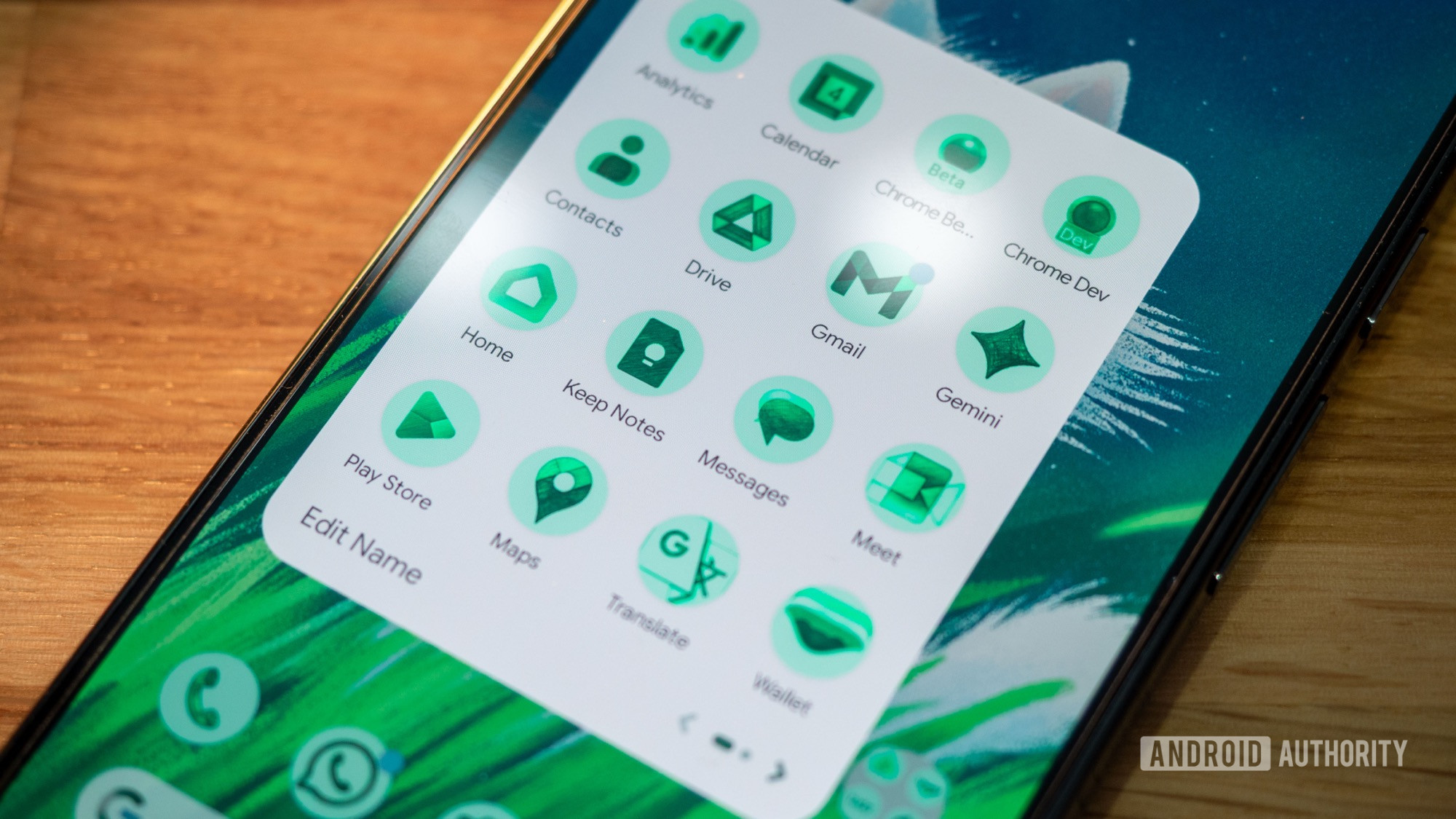
What struck me with Google’s approach to custom icons here is that it follows the same guidelines as the forced icon theming that rolled out with Android 16 QPR2. All my icons are themed, unlike custom icon packs I download from the Play Store, where half of my icons don’t have a proper equivalent, forcing me to apply something generic. Local French or Lebanese services, lesser-known apps, and even in-app shortcuts like the Photos app’s Screenshot icon (leftmost screenshot below); all of them are themed. Plus, none of them has an inconsistent design that doesn’t resemble the original icon. That’s the cost/benefit of using AI, I suppose. You don’t get creativity, but you get a one-dimensional approach to theming that works reliably well across a swath of different icons.
Every app icon is themed, unlike preset icon packs that don’t support my local services or more niche apps.
Better yet, if I decide to add a new app icon to my home screen, it takes a split second for the Pixel Launcher to generate a themed icon for it. I don’t have to think about it once I apply a theme, as it follows any changes I make to my home setup.
Still, I’ll admit that my first impression of these icon packs wasn’t very positive. I found them gaudy, especially the gold-gradient Treasure and the colorful Cookies styles. There’s a Gingerbread-era retro feel to them that threw me back straight into the early 2010s, when skeumorphic design was all the rage and excessive embossing and shadowing seemed cool. They’re borderline fine on their own, but what annoys me most is how faded and undecipherable they make my app folders. These are not the kind of icons I see myself using, personally, but if you do, I suggest switching to the square icon shape because it seems like it gives the icon itself more space.
The three other styles look much more interesting, in my opinion. If you find a good match between your wallpaper and icon style, you can have some really cool setups. I’ve been jumping between two dark navy-colored styles — the night-themed Stardust and Easel denim style — but my absolute favorite is Scribbles.
I love the Scribbles icon pack. It’s unique with easily-discernible icons, and it automatically adapts to my Pixel theme.
Scribbles is the most easily-discernible icon style among all of these. The pencil-sketch look isn’t too heavy-handed, and there’s enough contrast here to make app folders look nice with my personal home screen setup before being expanded. Scribbles offers many color themes, but there’s a “your wallpaper color” option that automatically adapts to whatever wallpaper and theme I apply to my Pixel.
This is the set-it-and-forget-it custom icon pack, since I can switch wallpapers without having to worry about my custom icons not following through. It’s the icon style I’ve been using the most since the feature rolled out. I feel that it has the perfect balance between legibility, style, and practicality. It’s unique and different enough that it allows me to sprinkle a bit of style onto my home screen without having to worry about downloading icon packs or using custom launchers. Just enough for my personal taste.
And for this reason, it’s the last straw that’s made third-party launchers redundant for me. Why bother with that much hassle when I already find the Pixel Launcher perfect for my use in every other way?
Don’t want to miss the best from Android Authority?


Thank you for being part of our community. Read our Comment Policy before posting.
 By
By