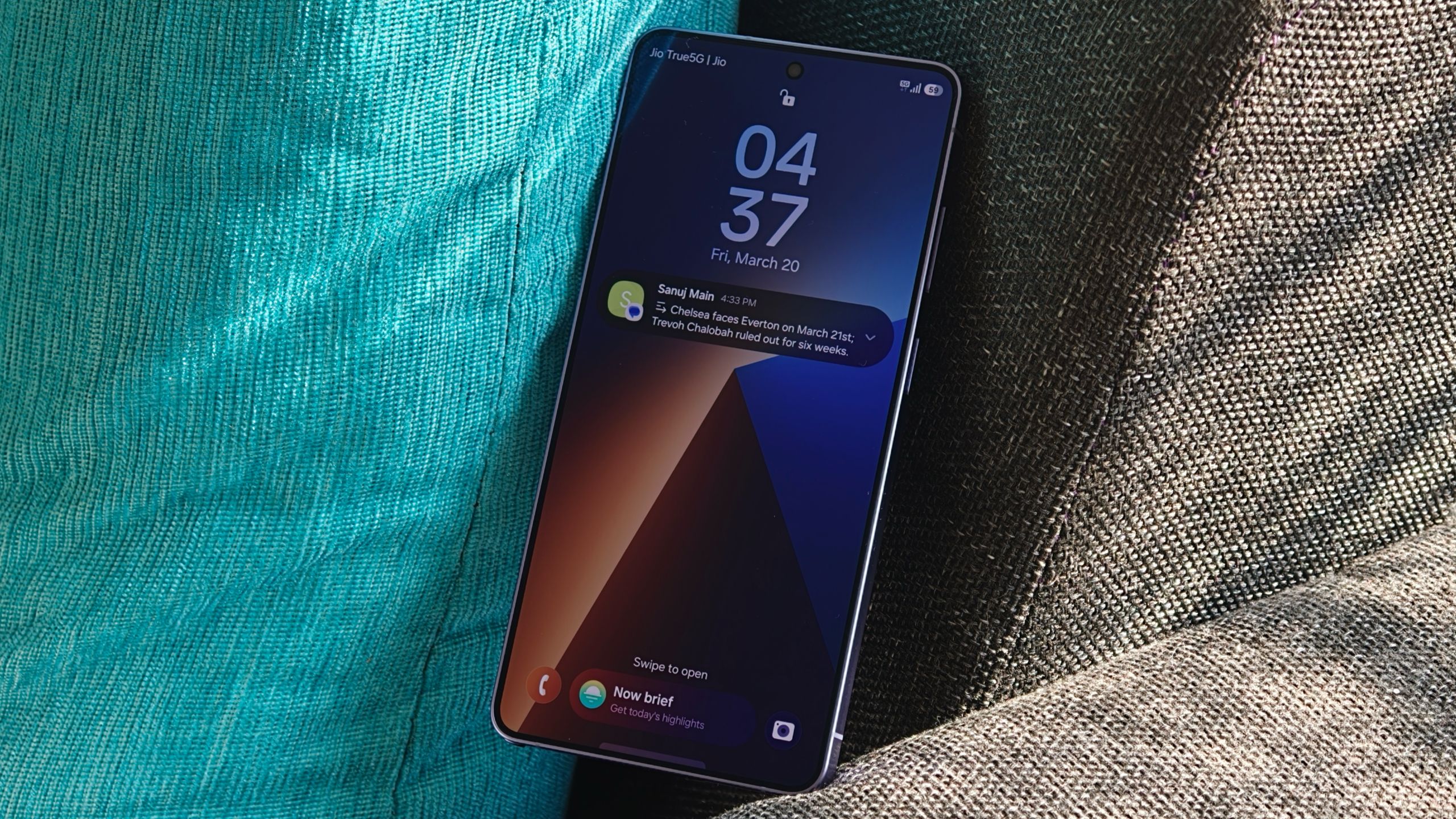

As much as it is about new hardware features, Samsung has recently shifted the Galaxy S flagship series toward AI and software features as well. Sure, the Privacy Display feature debuting with the Galaxy S26 Ultra is the headline addition, but there are a few other software features worth talking about.
Features like Gemini screen automation and the upgraded Audio Eraser bring something we are seeing for the first time on Samsung phones (and we’ve not even seen them on the latest Google Pixel devices). But that isn’t all.
Article continues below
Notification Summary and Prioritize notifications in One UI 8.5 explained

Before the Galaxy S26 series debuted, there were several rumors about Samsung adding a notification summary feature to One UI. Even when Samsung rolled out the One UI 8.5 beta for the Galaxy S25 series, the feature wasn’t included. Thankfully, with the Galaxy S26 lineup, notification summaries have finally arrived.
As the name suggests, this feature condenses long notifications into a more readable format. For example, if you receive multiple messages in a group chat or a lengthy email, the AI will summarize the content into a short, readable blurb that appears in the notification center. This lets you quickly understand what’s happening without opening the full message or app.
According to Samsung, the feature currently supports a range of languages, including English, Portuguese, Spanish, French, German, Italian, Chinese, Japanese, Korean, Thai, Polish, Vietnamese, and Hindi. It also works across most major messaging apps, including WhatsApp, Google Messages, Facebook Messenger, Snapchat, Telegram, and others.

Since this is an AI-powered feature, Samsung notes that summaries may occasionally be inaccurate. In my experience, however, it has been mostly reliable.
One thing I noticed is that even after enabling the feature, it took over a week before summaries started appearing on my Galaxy S26 Ultra. There’s no manual toggle to force summaries for specific apps. Samsung also notes that the feature may not work when the battery is low or when power saving mode is enabled.
In addition to summaries, Samsung has also introduced the Prioritize notifications feature in One UI 8.5. This feature learns your behavior, such as which apps you open first and which notifications you interact with most, and uses that to sort your notifications accordingly.
For example, when you pick up your phone in the morning and see a long list of notifications, this feature pushes the ones you are most likely to check to the top. It essentially identifies which alerts matter most to you and surfaces them first.
The Prioritize notifications feature also supports the same set of languages as notification summaries. Samsung also emphasizes that all notification processing happens on-device, meaning your data is not sent to the cloud.
How to enable Summarize notifications and prioritize notification features
1. Open the Settings app on your Galaxy device.
2. Tap Notifications and then select Notification highlights.
3. In Notification highlights, you will see both features: Prioritize notifications and Summarize notifications.
4. Open each section and enable the toggle for both features.

It’s worth noting that Galaxy AI features must be enabled on your device for these to work. It’s also worth keeping in mind that the feature may take a few hours or even days before it starts working.
When notification summaries are active, you will see a three-line icon with an arrow next to the app’s notification. You can still open the full notification by swiping down to view all the original content of the message or email.
These may be the most underrated One UI 8.5 features yet

Over the past few years, Samsung has added several features to the Galaxy AI suite, but few feel as subtle and genuinely useful as these notification features that have arrived with One UI 8.5.
It runs quietly in the background and still lets you access the full message content without interrupting your experience. Most importantly, all processing happens on-device, so your data remains private.
It’s certainly not perfect yet, and it’d have been useful to manually enable summaries for specific apps, but my guess is that it may be tied to Samsung’s power management system. Hopefully, Samsung refines this feature further in a future One UI update and adds an option to manually enable notification summary for specific apps.
 By
By