

Joe Maring / Android Authority
TL;DR
- The March update has downgraded the Recent apps screen on Pixel phones.
- You can no longer save selected images or search them using Google Lens.
- Workarounds exist, but they’re not as intuitive as the previous menu options.
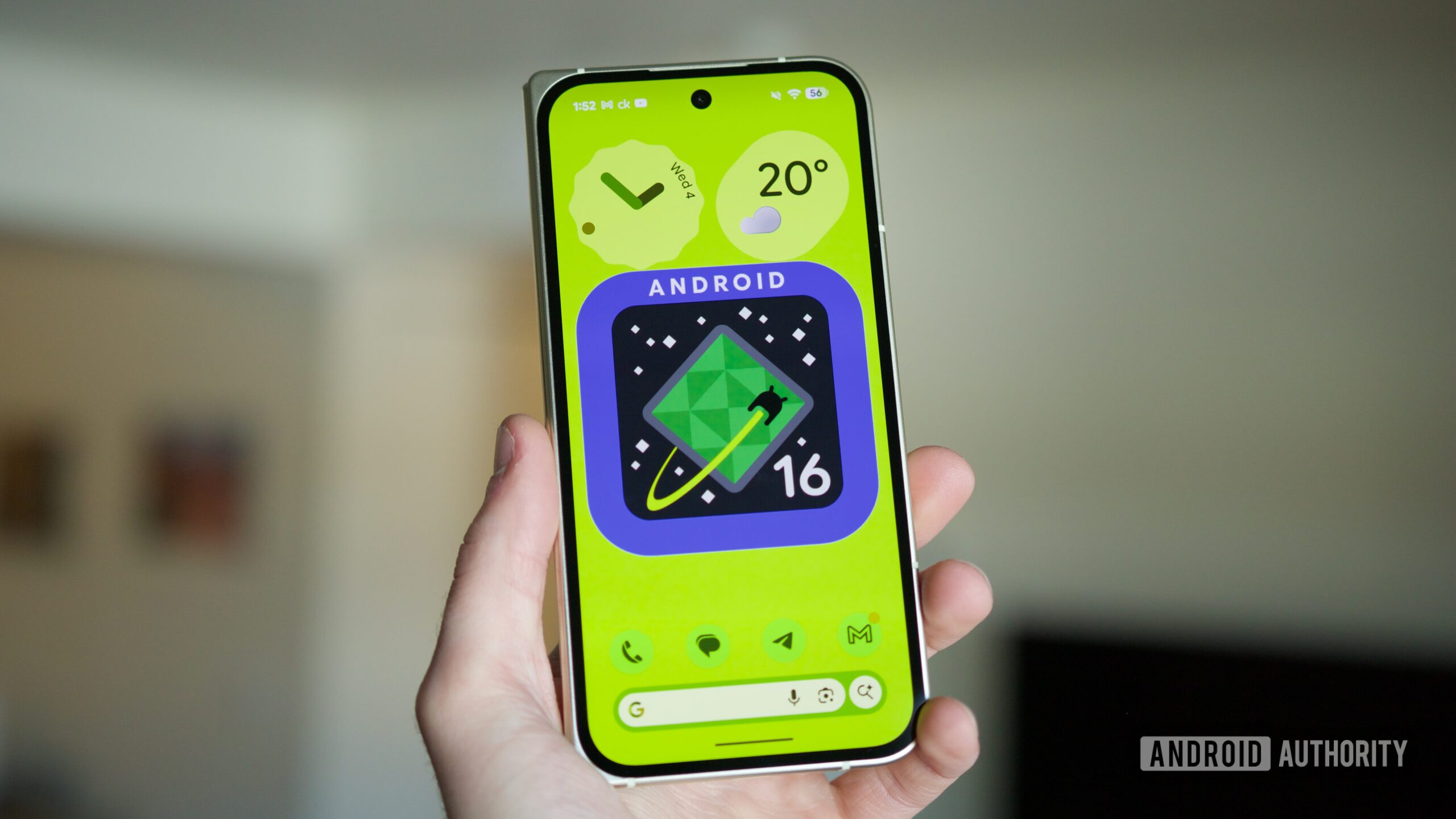
Google rolled out the stable Android 16 QPR3 update — commonly referred to as the March 2026 Pixel update — to Pixel phones earlier this month. If you’re using a Pixel device, there’s a good chance you’ve already installed the update. You’ve also probably noticed (like these folks on Reddit) a small but frustrating change in the Recent apps screen. We actually spotted and reported the change back in January, when it first appeared in testing, but we can now confirm that Google has rolled it out widely in the latest stable release.
Don’t want to miss the best from Android Authority?


You can no longer save images easily from the Recents screen
If you’ve ever long-pressed an image or used the Select tool in the Recent apps screen, you might already know about one of Android’s lesser-known productivity tricks. These methods allow you to grab text and images directly from app previews. It’s a neat shortcut that can save you from digging through apps or screenshots.
Until recently, selecting an image gave you useful options to save it, share it, or open it with Google Lens. Here’s how it worked:
After the March update, that list has been severely cut down. You’ll now only see Copy, Share, and Edit options when selecting images. The option to save the image to Photos is no longer available.
If you still want to save the image, there’s a workaround, but it’s definitely clunkier.
You can find and select the “Upload to Photos” option from the share sheet. It’s buried in there, so you’ll have to peel your eyes and look for it. While this does save the image to Google Photos, it takes longer than just tapping the Save button that existed before. You can also share the selected image with Files by Google. The image will save to Photos, but it ends up in the Downloads folder.
For a Lens search replacement, you can try Circle to Search or the “Google Search Image” option from the share sheet, which essentially brings up a Lens search. Again, this was so much more convenient with the Lens button right up there in the older UI.
A lot of people may not have realized the feature existed, but once you start using it, it becomes a surprisingly handy way to grab images or text from apps without taking screenshots.
So if you updated your Pixel in the last few weeks and thought something felt different in the Recents screen, you’re not imagining things.
Thank you for being part of our community. Read our Comment Policy before posting.
 By
By